RFS 3600 - To scan KODAK - Free user manual and instructions
Find the device manual for free RFS 3600 KODAK in PDF.


User questions about RFS 3600 KODAK
0 question about this device. Answer the ones you know or ask your own.
Ask a new question about this device
Download the instructions for your To scan in PDF format for free! Find your manual RFS 3600 - KODAK and take your electronic device back in hand. On this page are published all the documents necessary for the use of your device. RFS 3600 by KODAK.
USER MANUAL RFS 3600 KODAK
This PDF file has been developed to make access to different sections as easy as possible.
-
Any words that appear in red underline can be clicked to link you to another part of this document.
-
All listings in the table of Contents are links — click on any entry to jump to that section in this document.
-
All entries in the Index are links — click on a page number to jump to that page number.
-
An Icon Index allows you to click directly from a picture of an icon to the reference section explaining the function of that icon.
-
Any words that appear in blue underline can be clicked to link you to an address on the World Wide Web.
Contents
Using this PDF File 2
Important Safeguards and Precautions 7
Electromagnetic Emissions 9
VCCI Statement 10
Disposal Statement 10
Energy Star® Statement 11
Before You Begin 12
Macintosh Computer 12
Required Hardware 12
Required Software 12
PC-compatible Computer 12
Required Hardware 12
Required Software 13
Optional Printers 13
Connecting the Scanner to Your Computer 14
Connecting the Scanner to a Power Source 14
Making a SCSI Connection 16
If No External SCSI Devices Are Connected 17
If External SCSI Devices Are Connected 18
Setting the Scanner SCSI Identification Number 21
Making a USB Connection 23
Installing Scanner Software 25
Loading Filmstrips and Slides 26
Filmstrips 26
Slides 28
Tutorial: Using Scanner Software 29
Open Scanner Software 29
Produce Scanned Images 31
A. Establish Scanner Settings (Settings Tab) 32
B.Prescan Your Film 33
C. Rotate, Flip, Crop 35
D. Set Output Size (Width/Height, Magnify, Resolution) 36
E. Adjust Color (Click Balance, Auto Balance, Default Balance, Sharpening) 38
F. Fine-tune Color (Color Balance and Levels & Curves Tabs) 41
G. Generate Scans 44
H. Save Settings and Quit 45
Reference - Hardware 47
Power Connector and On/Off Switch 47
Four Operating Buttons 47
Computer Connections (SCSI and USB) 48
SCSI Connectors and SCSI ID Controller 48
SCSI ID Switch 48
USB Port 48
Reference-Software 49
General Screen Layout 49
Thumbnail Images 49
Total Number of Prescanned Images 50
Scroll Left and Scroll Right Buttons (Scroll Filmstrip Thumbs) 50
Selecting/Deselecting Thumbsnails 50
Film Motion (Reverse Eject, Reverse, Forward, Forward Eject) 51
Zoom In and Zoom Out 51
Move 52
Image Rotation (90° Counterclockwise, 180°, 90° Clockwise) 52
Flip Horizontal and Flip Vertical 52
Black Pointer,Gray Pointer,and White Pointer 52
CMYK or RGB Values 54
Auto Balance 54
Default Balance 55
Auto-Focus Slide 55
Undo 56
Image Window 56
Prescan Frame 58
Prescan Strip 58
Scan 58
Scan to File 59
Calibration (Light Source) 60
About (Version Numbers and Firmware Upgrade) 60
Help 61
Exit 61
Status Bar 61
Settings Tab 62
Image Area 62
Units and Rulers 63
Cropping 63
Film Type (Negative, Reversal, B&W, and Film Terms) 64
Profiles (Monitor and Output) 64
Color Depth 65
Sharpening 66
Output Size and Input Values (Width, Height, Lock, Magnify, Resolution, File Size) 66
Formulaic Relationships 68
Numeric Examples 69
Relationships Between Variables 70
Manage Scan Profile 71
Scan Resolution 72
Scan Area 72
Color Balance Tab 73
Brightness, Contrast, Saturation, Cyan/Red, Magenta/ Green, and Yellow/Blue 74
Reset 74
Levels & Curves Tab 75
Channel, Histogram, and Curves 76
Reset 77
Working with Multiple Selected Images 77
Selecting Multiple Images 77
Scanning Multiple Images 78
Software License Agreement 79
Warranty 83
Troubleshooting 86
Hardware 86
Software 87
Image 87
Messages 90
Updating the KODAK Driver 96
Downloading Software Drivers Electronically 96
Installing and Updating Software/Firmware 97
Repacking Instructions 98
Specifications 99
Glossary 104
Icon Index 106
General Screen Icons 106
On the Settings Tab 109
On the Color Balance Tab 110
On the Levels & Curves Tab 110
Technical Assistance 111
Index 112
Important safeguards and Precautions
WARNING: To prevent fire or shock hazard, do not expose the equipment to rain or moisture and use only the recommended accessories or attachments.
CAUTION
RISK OF ELECTRIC SHOCK.
DO NOT OPEN.
CAUTION: TO REDUCE THE RISK OF ELECTRIC SHOCK, DO NOT REMOVE COVER.
NO USER-SERVICEABLE PARTS INSIDE.
REFER SERVICING TO QUALIFIED SERVICE PERSONNEL.
- Read and Follow Instructions. Read and follow all the safety, operating, and use instructions before operating the equipment.
- Retain Instructions. Retain the safety and operating instructions for future reference.
- Retain Packing Materials. Retain the packing case for use if the equipment must be shipped.
- HeedWarnings. Heed all warnings on the equipment and in the operating instructions.
- Controls. Adjust only those controls that are covered by the operating instructions.
-
Cleaning. Unplug the equipment before cleaning. Clean only the outside case with a damp cloth. Do not use liquid cleaners or aerosol cleaners.
-
Attachments. Do not use attachments that are not recommended. The use of such attachments may cause hazards and serious damage to the equipment.
WARNING: Water and Moisture. Do not use the equipment near water — for example, near a sink, or in a wet room, or in a basement, and so on. Do not expose the equipment to rain or moisture and do not immerse the equipment in water or other liquids; contact Kodak for servicing if this occurs.
-
Dust. Avoid operating the equipment in areas with excessive dust levels.
-
Power Sources. You should operate the equipment only from the type of power source indicated on the unit. If you are not sure of the type of power supply that will be used, consult a dealer or local power company.
-
Grounding. The AC adapter is equipped with a grounding-type plug. The plug will fit into a grounding-type power outlet. This is a safety feature. If you are unable to insert the plug into an outlet, contact an electrician to replace the obsolete outlet. Do not defeat the safety purpose of the grounding-type plug in any way.
-
Power-Cord Protection. Route power-supply cords so that they are not likely to be walked on or pinched by items placed on or against them; pay particular attention to cords at plugs, receptacles, and the point where they leave the unit.
-
Operating Range. If the equipment has been stored or transported outside its operating ambient temperature range (refer to Specifications), allow it to return to within its operating range before turning it on.
-
Lightning. For added protection during a lightning storm, or any time when you will leave the equipment unattended and unused for long periods of time, unplug the equipment from the power outlet and the computer. This will protect the scanner from damage caused by lightning or power-line surges.
-
Overloading. Do not overload power outlets and extension cords; this can result in a risk of fire or electric shock.
-
Object or Liquid Entry. Never push foreign objects of any kind into the equipment openings. Never spill liquid of any kind on the equipment; contact Kodak for servicing if this occurs.
Servicing. Do not attempt to service the equipment yourself. Opening or removing covers voids your warranty and may expose you to dangerous voltage or other hazards.
- Damage Requiring Service. Unplug the unit from the wall outlet and the computer and refer all servicing to the manufacturer under the following conditions. (Refer to the Warranty for additional information.)
When the AC adapter or adapter plug is damaged.
If liquid has been spilled on the equipment or if objects have fallen into the equipment.
If the equipment has been exposed to rain or water.
If the equipment does not operate normally according to the operating instructions.
If the equipment has been dropped or the housing has been damaged.
When the equipment exhibits a distinct change in performance.
-
Accessories. Do not place the equipment on an unstable cart, stand, bracket, or table. It can fall, causing serious injury to persons and serious damage to the equipment. Use only with a stable cart, stand, bracket, or table.
-
Handling. Handle the equipment with care; do not drop the equipment.
ELECTROMAGNETIC EMISSIONS
This equipment has been tested and found to comply with the limits for a Class B digital device, pursuant to Part 15 of the FCC Rules. These limits are designed to provide reasonable protection against harmful interference in a residential installation. This equipment generates, uses and can radiate radio energy and, if not installed and used in accordance with the instructions, may cause harmful interference to radio communications. However, there is no guarantee that interference will not occur in a particular installation. If this equipment does cause harmful interference to radio or television reception, which can be determined by turning your scanner off and on, you can try to correct the interference by one or more of the following measures:
Reorient or relocate the receiving antenna.
- Increase the separation between your scanner and receiver.
- Connect your scanner into an outlet on a circuit different from that to which the receiver is connected.
- Consult the dealer or an experienced radio/TV technician for help.
This equipment conforms with the requirements of European Standard EN55022 with respect to radio interference for a Class B device.
This digital apparatus does not exceed the class B limits for radio noise emissions from digital apparatus set out in the radio interference regulations of the Canadian Department of Communications.
VCCI Statement
情報処理裝置等電波障害自主規制にて
The KODAK PROFESSIONAL RFS 3600 Film Scanner contains lead and mercury. Disposal of these materials may be regulated due to environmental considerations. For disposal or recycling information, please contact your local authorities or contact Kodak Environmental Services at 716-477-3194 or http://www.kodak.com/go/kes.
ENERGY STAR® STATEMENT

ENERGY STAR® is a U.S. registered mark.
As an ENERGY STAR® Partner, Eastman Kodak Company, has determined that this product meets ENERGY STAR® guidelines for energy efficiency.
Before You Begin
Before you continue, complete and submit the enclosed Warranty Registration card. You should also read the Software License Agreement and Warranty in this manual.
MACINTOSH COMPUTER
Required Hardware
- Apple Power Macintosh Computer, 300MHz or greater. A faster processor will result in faster scan times and increased performance.
- At least 128 megabytes (MB) dynamic random access memory (DRAM). Use 256 MB DRAM or more to improve performance when using the scanner software.
At least 200 MB of available hard disk space. - USB or SCSI II connector.
- High quality monitor with at least a 24-bit display card, with the monitor resolution set to at least 800 by 600 pixels.
Required Software
Apple Macintosh OS 8.5.1 or later.
Adobe Photoshop 5.0 or later. Refer to your Adobe Photoshop manual for hard disk and DRAM requirements for that software.
PC-COMPATIBLE COMPUTER
Required Hardware
-
PC-compatible computer, 300MHz or greater. A faster processor will result in faster scan times and increased performance.
-
At least 128 megabytes (MB) dynamic random access memory (DRAM). Use 256 MB DRAM or more to improve performance when using the scanner software.
At least 200 MB of available hard disk space. - USB or SCSI II connector. A USB connection requires Microsoft Windows 98 SE or Windows 2000. A SCSI connection is supported on Microsoft Windows 98 SE, Windows 2000, and Windows NT 4.0. For a SCSI connection, the scanner is compatible with Adaptec 2906, 2930, and 2940 Advanced SCSI Programming Interface (ASPI) host adapter cards, running EZ-SCSI 5.0 or later software.
- High quality monitor with at least a 24-bit display card, with the monitor resolution set to at least 800 by 600 pixels.
Required Software
Microsoft Windows 98 SE, Windows 2000, or Windows NT 4.0.
Adobe Photoshop 5.0 or later. Refer to your Adobe Photoshop manual for hard disk and DRAM requirements for that software. May also work with other software applications that support TWAIN specifications.
A SCSI connection requires EZ-SCSI 5.0 or later software.
OPTIONAL PRINTERS
In the United States, contact Kodak at 1-800-CD-KODAK (1-800-235-6325) for detailed information on printer options and accessories and to obtain ordering catalog numbers; in Canada call 1-800-465-6325, and elsewhere outside the United States contact your local Kodak representative.
Connecting the scanner to Your Computer
CONNECTING THE SCANNER TO A POWER SOURCE
Follow the steps below to connect your scanner to a power source; the numbers in the artwork correspond to the numbered steps that follow.
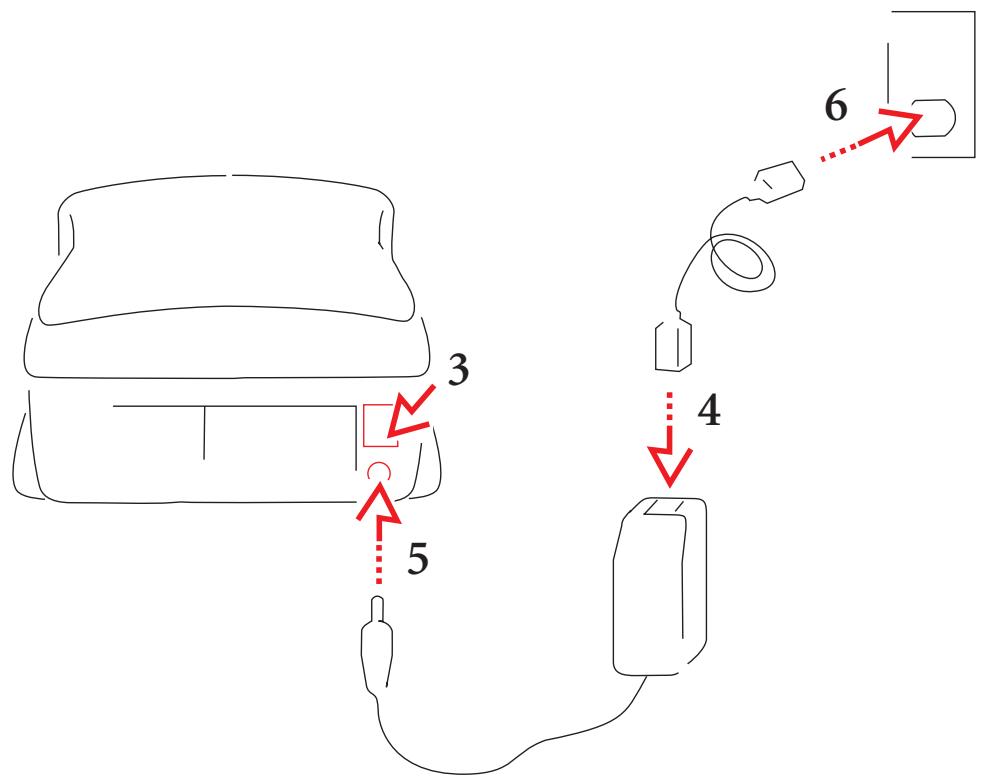
- Remove the scanner from its box and save any packing material.
- Place the scanner near your computer.
- Press the off end (O) of the power switch on the back of the scanner to ensure that the switch is in its off position.
- Connect the power cable that matches your local power supply to the AC adapter.
-
Plug the end of the AC adapter cable into the plug on the scanner.
-
CAUTION: Use only the AC adapter supplied with the scanner; using any other adapter will void your warranty.
- Plug the other end of the power cable into a power source.
You are now ready to connect your scanner to your computer using either the SCSI connection or the USB connection. If you are using a USB connection, skip to Making a USB Connection. Instructions for making SCSI connections follow.
MAKING A SCSI CONNECTION
Follow these steps to make a SCSI connection between your scanner and your computer; the numbers in the artwork correspond to the numbered steps that follow.
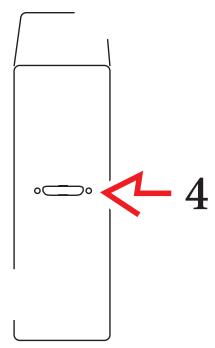
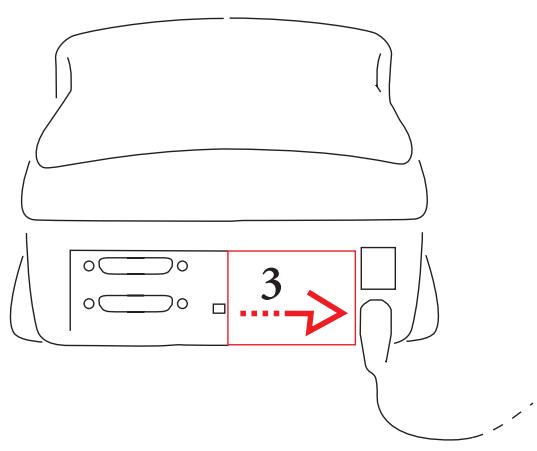
- Shut down your computer and all peripherals.
- PC-compatible customers only. You computer must have a supported SCSI host adapter card and SCSI software installed to complete the following steps. The Before you Begin (PC-Compatible Computer) section of this manual lists supported adapter cards. If a card must be installed, only trained and qualified technical personnel should install and configure it.
- Slide the cover on the back of the scanner to the right to reveal the two SCSI ports, also called SCSI connectors.
- Find the SCSI port on the back of the computer (not the scanner), and determine whether or not one or more external devices such as a disk drive are already attached to that port in a chain.
- Select the appropriate instructions from the two sets that follow, according to whether or not other external SCSI devices are connected.
If No External SCSI Devices Are Connected
The numbers in the artwork correspond to the numbered steps that follow.
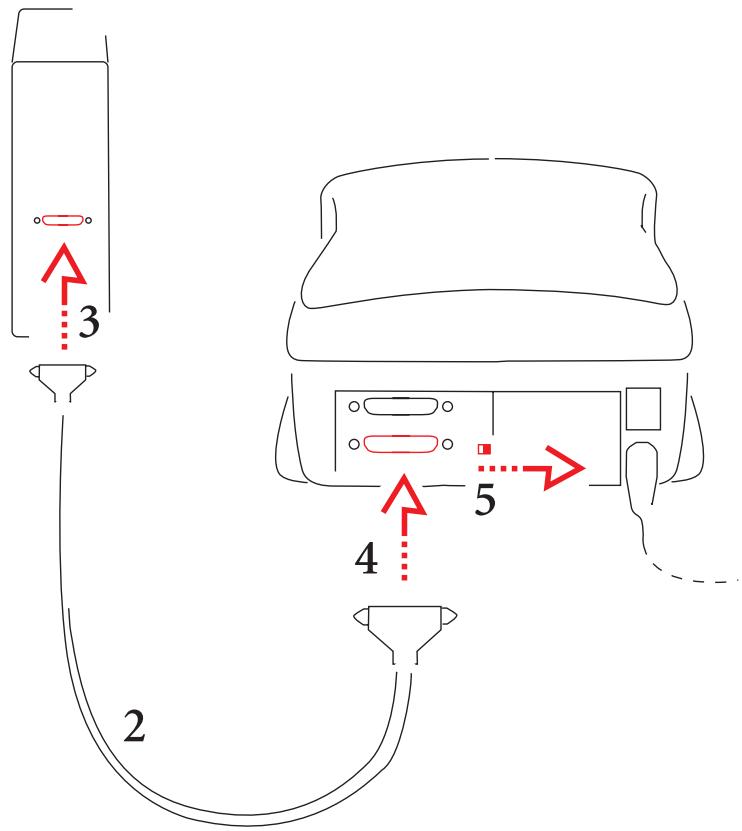
- Be sure power is turned off to your computer and scanner.
- Select the SCSI II cable supplied with the scanner.
- Attach the appropriate end of the SCSI cable to the SCSI port on the computer; make sure the cable connector is well seated.
Note: If the connectors at the ends of the supplied cable do not allow you to complete this step, you will need to purchase a SCSI cable that will complete this connection. Cables are widely available from computer retailers; if you must purchase a cable, be certain to obtain a high quality cable with a continuous EMI shield over the cable and connectors.
- Attach the other end of the cable to either of the identical SCSI ports on the back of the scanner; again make sure the cable connector is well seated.
- Set the SCSI termination switch on the back of the scanner to the on position.
- Continue at Setting the Scanner SCSI Identification Number later in this chapter.
If External SCSI Devices Are Connected
Continue here if multiple SCSI devices are connected to your computer in a chain. The following steps will help you determine where you should place the scanner in that chain — either at the end of the chain, or in the middle of the chain.
The total cable length connecting all devices must not exceed 15 feet (4.6 meters).
- Be sure power is turned off to your computer, to the scanner, and to all devices in the SCSI chain (turn off the computer first).
- Select the SCSI II cable supplied with the scanner.
Note: If the connectors at the ends of the supplied cable do not allow you to complete the following steps, you will need to purchase a SCSI cable will complete the chain described below. Cables are widely available from computer retailers; if you must purchase a cable, be certain to obtain a high quality cable with a continuous EMI shield over the cable and connectors.
- Determine if the already connected SCSI devices are terminated or not. To do so:
A. First look for an external SCSI terminator on the devices; if you find one (it should be on the last device in the chain), remove it.
B. Because some devices contain internal terminators, also check the instructions for your devices to determine if they are terminated internally.
- If an external terminator has been removed or if none of the connected devices is terminated internally, follow the directions in this step; otherwise continue at the next step. In this step, you will place the scanner at the end of the chain of connected devices; however, you can place the scanner anywhere in the chain as long as the last device in the chain is terminated.
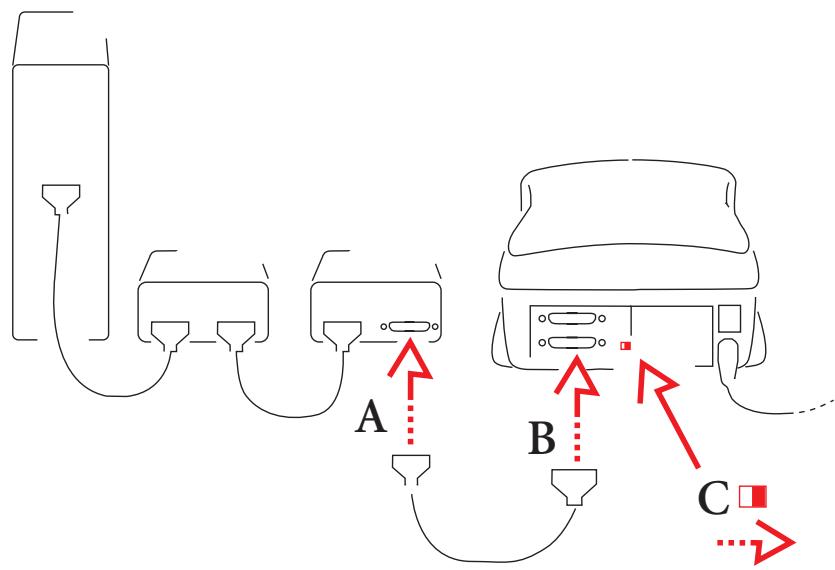
A. Attach one end of your SCSI cable to the empty SCSI port on the last device in the chain; make sure the connector is well seated.
B. Attach the other end of the cable to either of the identical SCSI ports on the back of the scanner; make sure the connector is well seated.
C. Set the SCSI termination switch on the back of the scanner to the on position.
D. Continue at Setting the Scanner SCSI Identification Number next in this chapter.
- Follow this step if one of the connected devices is terminated internally. In this step, you will place the scanner in the chain just before the terminated device; however, you can place the scanner anywhere in the chain between the terminated device and the computer. (The terminated device is shaded in the artwork below.)
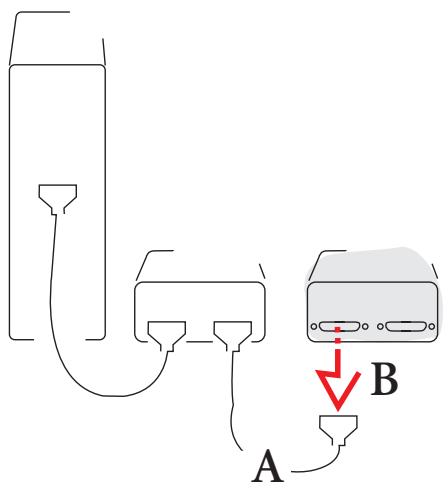
A. Locate the cable leading to the internally terminated device; this should be the last device in the chain.
B. Disconnect the end of that cable from the internally terminated device; do not disconnect the other end of the cable.
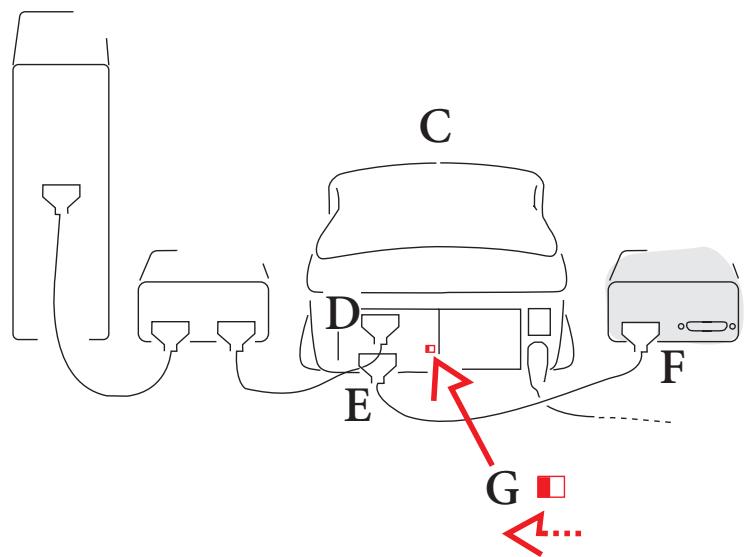
C. Position the scanner so that you can connect it in the chain before the terminated device.
D. Attach the end of the cable you just disconnected to either of the identical SCSI ports on the back of the scanner; make sure the connector is well seated.
E. Attach one end of your SCSI cable to the empty SCSI port on the scanner; make sure the connector is well seated.
F. Attach the other end of your cable to the empty SCSI port on the internally terminated device; make sure the connector is well seated.
G. Set the SCSI termination switch on the back of the scanner to the off position.
Setting the Scanner SCSI Identification Number
Each SCSI device connected to the same computer must have a different SCSI ID number. Be certain that the number is unique, and assign high ID numbers to devices used most frequently.
- If SCSI devices other than the scanner are connected to your computer, determine their SCSI identification numbers so that you can select a
different number for the scanner. If necessary, refer to the documentation for those devices to determine how to find their numbers.
-
Double-check to make sure that the power to the scanner is off; the off end (0) of the switch should be pressed in and the light near the front right corner of the scanner should be off. (Make sure the power to the scanner is off if you change its SCSI ID number at a later time.)
-
Using the guidelines below set the SCSI ID number by turning the SCSI ID dial on the bottom of the scanner with a small screwdriver.
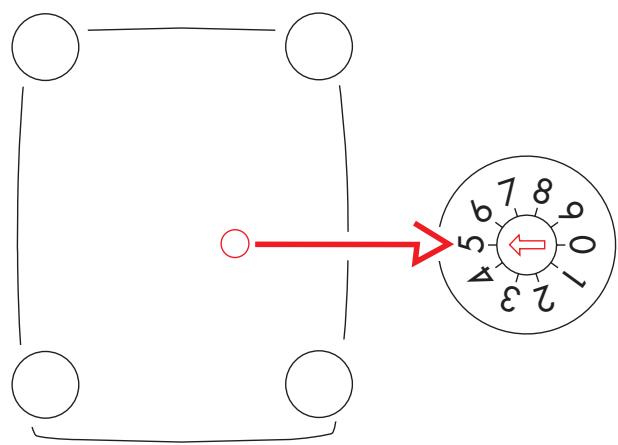
A. Macintosh. If you are working on a Macintosh Computer and are uncertain of what number to choose, avoid numbers 0, 3, and numbers 7 and above, as well as any other number that has been assigned to another connected device.
B. PC-Compatible. Do not choose 0 or numbers 7 and above. Do not choose the number of your SCSI host adapter; consult your SCSI host adapter manual to see if other SCSI IDs should not be used. Do not choose any other number that has been assigned to another connected device.
MAKING A USB CONNECTION
- If you have not already done so, follow the steps earlier in this chapter in Connecting the Scanner to a Power Source.
- Macintosh. Be certain that a USB connector is available on your computer and functioning properly.
- PC-compatible. Follow this step if you are uncertain if a USB connector is available and working properly; if all of the conditions below are met, your computer supports a USB connection.
A. Right-click the My Computer icon on your desktop.
B. Choose Properties from the pop-up menu that appears.
C. Verify that the operating system listed on the Properties screen is Microsoft Windows 98 or Windows 2000; if it is not, you will not be able to use the USB port with the scanner.
D. Click the Device Manager tab.
E. Verify that the Universal Serial Bus Controller is listed as a device and that it appears without any yellow or red indicators.
F. Click the plus sign (+) to the left of the Universal Serial Bus Controller list item to expand it.
G. Verify that a both a controller and a USB Root Hub are listed.
H. Double-click USB Root Hub.
I. Verify that the Device Status in the center of the screen is "The device is working properly."
J. Close these dialog boxes.
-
Shut down your computer and all peripherals.
-
Be sure power is turned off to the scanner.
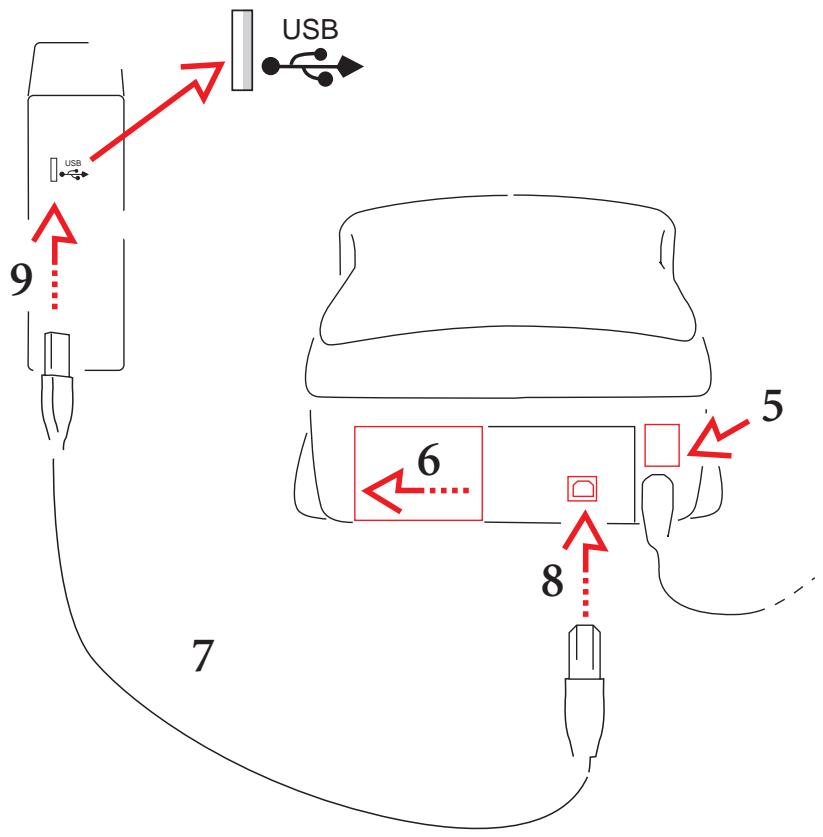
- Slide the cover on the back of the scanner to the left to reveal the USB port.
- Select the USB cable supplied with the scanner.
- Notice that the included USB cable has different connectors at each end; attach the appropriate end of the USB cable to the scanner.
- Connect the other end of the USB cable to the computer.
Installing scanner software
- Turn on the scanner and then turn on all other components of your computer system.
- Install your copy of Adobe Photoshop if you have not already done so.
- Make sure the gamma for your monitor is calibrated properly by following instructions in the Photoshop manual.
- Locate the CD enclosed with the scanner that contains this software:
KODAK PROFESSIONAL RFS 3600 Film Scanner Acquire Module / for Macintosh.
- KODAK PROFESSIONAL RFS 3600 Film Scanner TWAIN Data Source / for WINDOWS Systems.
- Close all open programs.
- Place the CD into your computer.
- If the installation does not start automatically:
A. Macintosh. Open the window for the CD and run the installer program.
B. PC-Compatible. Click Start and click Run. In the Run dialog box, type D:\setup, and then click OK. (If your CD-ROM drive is not "D" use its letter instead.)
-
Complete the on-line instructions that appear on the screen.
-
Eject and store the CD; although installing the files is a onetime action, you may need to reinstall them at a later time.
Loading Filmstrips and Slides
FILMSTRIPS
The scanner accepts 35mm filmstrips from 3-36 frames in length, and accepts color negatives, color reversals (slide film), and black and white negative film.
CAUTION: Never load a single or two-frame film negative. Additionally, spliced film is not supported, and should not be used with the scanner.
Follow these steps to load a filmstrip into the scanner; the computer and scanner should both be powered on.
- Since you will be handling film, you may wish to wear protective gloves when loading the filmstrips.
- If numbered identification labels of any kind are stuck on either end of the film, cut those off, as long as the remaining filmstrip will be at least three frames in length. (The scanner does not accept filmstrips shorter than three frames.)
- If the film has a blank leader at either end cut the leader off, as long as the remaining film strip will be at least three frames in length.
-
Be certain the filmstrip is clean and dust free; if not, clean it as needed.
-
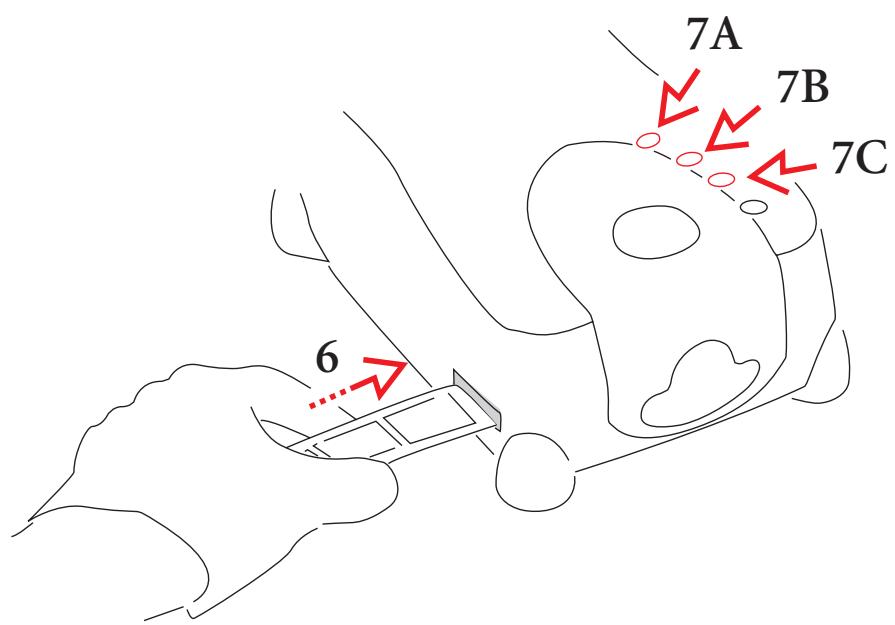
Orient the filmstrip as follows:
The film should be fed from the left of the scanner.
The highest frame number should enter the scanner first.
Data on the edge of the filmstrip should be at the top of the film.
These actions should result in the emulsion side of the film being faced down.
-
Gently move the filmstrip into the scanner from the left until the scanner detects the film and pulls the film into the scanner.
-
Use the buttons on top of the scanner to reposition the filmstrip as follows:
A. Eject. This button ejects the filmstrip to the left, out of the scanner. As we'll explain later, this button has the same function as the Eject Reverse button in the scanner software.
B. Reverse. This button performs two different functions. Tap the button to move the filmstrip to the left (reverse) in fine increments over the current frame. Press and hold this button for approximately one-half second to move the filmstrip one full frame to the left. (As we'll explain later, this button performs the same two functions as the Reverse button in the scanner software.)
C. Forward. This button performs two different functions. Tap the button to move the filmstrip to the right (forward) in fine increments over the current frame. Press and hold this button for approximately one-half second to move the filmstrip one full frame to the right. (As we'll explain later, this button performs the same two functions as the Forward button in the scanner software.)
SLIDES
The scanner accommodates one mounted 35mm slide at a time; no slide holder is used.
-
Be certain the slide is clean and dust free; if not, clean it as needed.
-
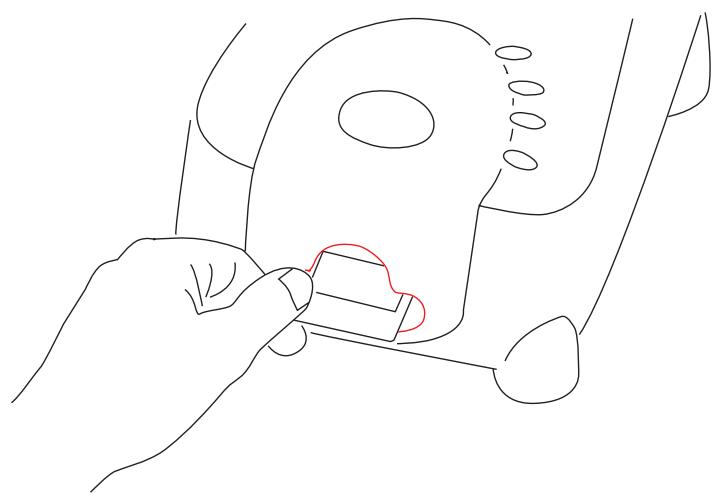
Orient the slide as follows:
The top of the slide should enter the scanner first.
The image should be oriented so that the image is facing you, as you would see it in real life (not mirror-imaged).
-
Hold the slide mount with your thumb and forefinger, and gently push the slide into the slot on the front of the scanner until the slide is at the rear of the slot.
-
When you are ready to remove the slide, extend your thumb and forefinger into the opening and pull the slide from the scanner.
IMPORTANT: The Eject button on top of the scanner does not function with slides.
Tutorial: Using scanner software
There is no one 'correct' way of using the scanning software; instead, there are many different paths, depending on your individual requirements. This section provides one possible path, and provides an overview of software features. For more details on each software feature refer to Reference - Software.
This manual assumes that you are familiar with the operation of your computer and of Adobe Photoshop, and that you have your scanner connected properly to your computer as described in Connecting the Scanner to Your Computer. It also assumes that you have read and are familiar with the material in this manual in these sections: Important Safeguards and Precautions, Installing Scanner Software, and Loading Filmstrips and Slides.
The initial sections of this part of the manual discuss how to scan a single image. However, it is also possible to select multiple images and scan them in a batch; the concepts involved are discussed later in Working with Multiple Selected Images.
OPEN SCANNER SOFTWARE
Follow the steps in this section each time that you want to use the scanner.
- With your computer, scanner, and other devices (if present) turned off, turn on the scanner by pressing the on (I) end of the power switch on the back of the scanner. The light on the top of the scanner turns on. The scanner performs a start-up procedure and then is ready for use.
CAUTION: If you are using a SCSI connection for the scanner, always turn on the scanner before you turn on your computer.
- Turn on other devices if present.
- Turn on your computer.
-
Open Adobe Photoshop.
-
Open the scanner window on your Macintosh or PC-compatible as follows. (If the scanner choices do not appear as expected, repeat the steps in Installing Scanner Software to reinstall the scanner software.)
Macintosh. Choose KODAK RFS 3600 from the Import submenu of the Adobe Photoshop File menu; the scanner software window appears.
PC-compatible. Follow these steps:
A. Choose Select TWAIN_32 Source on the Import submenu of the Adobe Photoshop File menu; the Select Source dialog box appears.
B. Click RFS 3600 TWAIN Data Source.
C. Click Select; you are returned to Adobe Photoshop.
Note: You do not need to repeat steps A through C each time you use the software; instead, on future uses of the software just follow part D of this step.
D. Choose TWAIN_32 on the Import submenu on the File menu; the scanner software window appears.
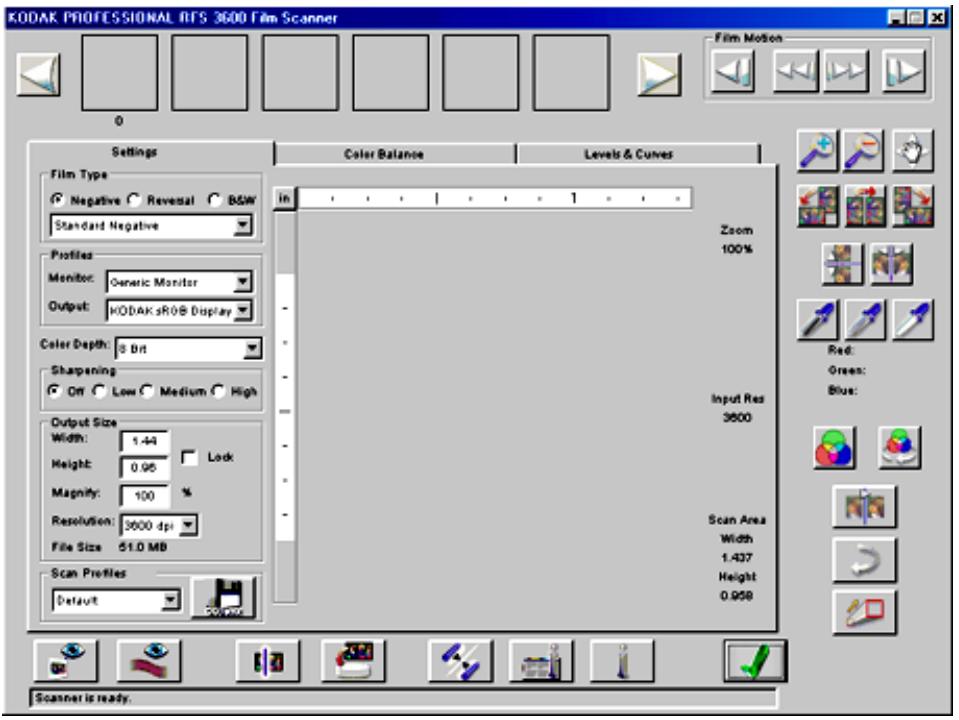
- You see this screen; it has a central set of three tabs (Settings, Color Balance, and Levels & Curves) surrounded by general controls.
(Refer to Messages if a message indicates that the scanner was not found.)
PRODUCE SCANNED IMAGES
In a typical work session you might follow these summary steps. After the listing below, each step is explained in tutorial form.
A. Establish scanner settings — film type, profiles, color depth, etc. — on the Settings tab.
B. Prescan your filmstrip or slide; image thumbnails appear across the top of the screen.
C. Rotate, flip, and crop as needed.
D. Set the output size — including width and height, magnification, and resolution.
E. Adjust color with the controls on the right of the screen.
F. Fine-tune color on the Color Balance and Levels & Curves tabs.
G. Generate scans of images.
H. Save settings and quit the software.
Note: If you follow these steps on your computer, and wish to quit in the middle of the tutorial, you can click the Exit button to close the scanner software window.
A. Establish Scanner Settings (Settings Tab)
- Load a filmstrip or slide into the scanner as described in Loading Film-strips and Slides; in this section the manual will assumes that you have loaded a filmstrip.
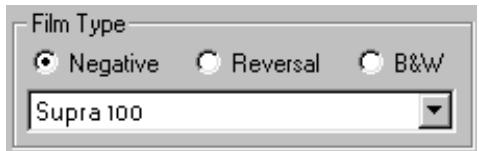
- Set the Film Type.
A. Choose color Negative, color Reversal (slide film), or B&W (black and white) negative.
B. Select the specific film type from the choices on the drop-down menu.
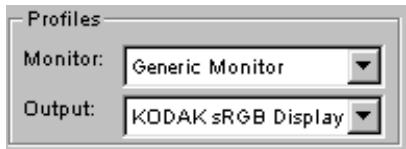
- Set Profiles.
A. Select your color monitor from the drop-down Monitor list; if your monitor is not listed, choose Generic Monitor. The color of previews performed by the scanner software will be adjusted based on the monitor you choose.
B. Select your output space (for example a specific printer), from the drop-down Output list of International Color Consortium (ICC) profiles. If your desired output color space is not listed, choose KODAK sRGB Display.
- Set Color Depth by choosing either 8 Bit or 12 Bit per channel from the Color Depth drop-down list. Refer to Reference - Software, Color Depth for additional information.

B. Prescan Your Film
With a filmstrip, you can select a single image to prescan (step 1 below), or you can prescan the filmstrip in its entirety (step 2 below), which requires considerably more time for a long filmstrip. Both options are explained, but it is suggested that even if you will prescan a full strip, that you start with step 1 to ensure proper frame alignment.
- Prescan a single image.
A. Advance the filmstrip to the desired image using the Reverse and Forward buttons in the Film Motion area of the software. From left to right the buttons below are Reverse Eject, Reverse, Forward, and Forward Eject. (You can also use the buttons on top of the scanner to reposition the filmstrip as described earlier.)
B. Prescan the single frame currently located in the scan position in the scanner by clicking the Prescan Frame button.
C. If the frame is not centered properly in the scan position, tap the Reverse or Forward buttons on top of the scanner as needed to move the filmstrip in fine increments over the current frame. As you do, you can watch the film movement through the viewer on the top of the scanner to ensure that the frame is properly centered. Then click the Prescan Frame button again. You can perform the same function in the software as described in Reference - Software (Film Motion).
2. Prescan the full filmstrip.
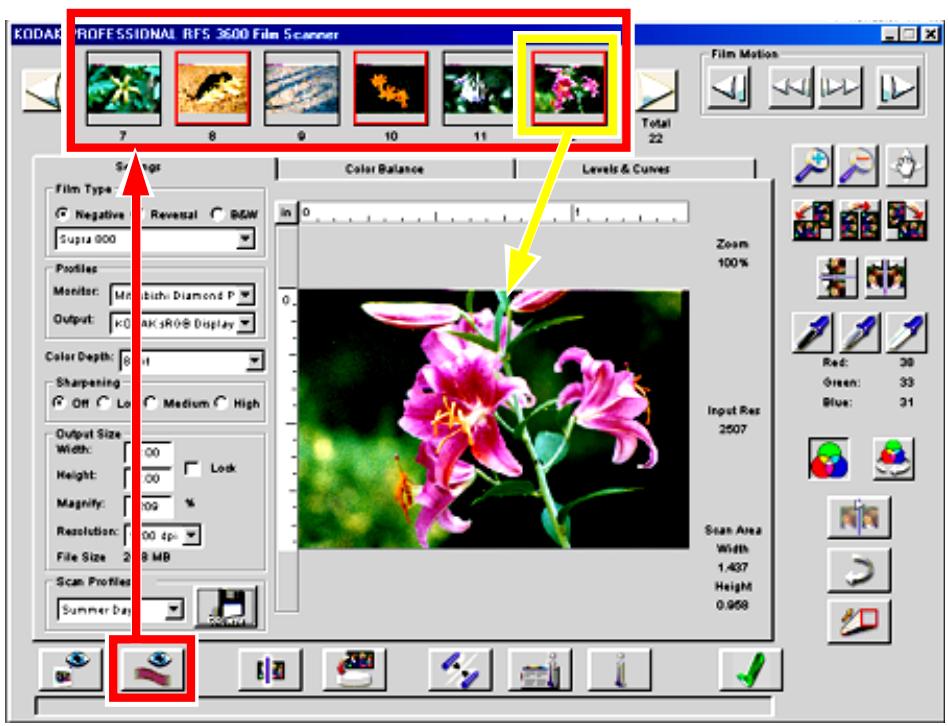
Click the Prescan Strip button; the entire filmstrip is prescanned, thumbnails appear across the top of the screen, and the first image scanned automatically appears in the image area in the center of the screen. The screen examples in the remaining portions of this chapter assumes you have prescanned a filmstrip rather than a single image.
(If you wish, you can press the cancel button you see in the dialog box at any time to cancel the prescan strip action before it prescans all frames on the filmstrip.)
- Scroll the thumbnails by clicking the arrows at either end of the thumbnails until the image you want to scan is visible.

- Click the thumbnail of the image you intend to scan in a later step; a red border surrounds the thumbnail and the image appears in the preview image window in the center of the screen.
C. Rotate, Flip, Crop
- (Optional.) Use the image rotation buttons to rotate the image, and its thumbnail, 90 degrees counterclockwise, 180 degrees, or 90 degrees clockwise.
- (Optional.) Use the flip buttons to flip the image, and its thumbnail, horizontally or vertically.
-
(Optional.) Crop the image by dragging the pointer from corner to corner across the area you want to crop; a crop box surrounds the selected area. The effect of the crop takes place later when the image is scanned.
-
(Optional.) Resize the crop box by moving the pointer over any edge or corner of the crop box, then drag to the desired size. To move an existing crop box, move the pointer inside the crop box, then drag to the desired location. To remove the crop box, click outside of the crop box on the preview image.
D. Set Output Size (Width/Height, Magnify, Resolution)
This section provides a brief explanation of several of the items in the Output Size area of the Settings tab. For a full explanation refer to the Output Size and Input Values section of this manual.
You control what portion of the frame will be scanned and at what resolution. One way you control the part of the frame to be scanned is by dragging a crop box as explained above; this results in changing the Scan Area (Width and Height) shown on the screen to the right of the image. You control the scanning resolution (also to the right of the image, as the Input Res) indirectly as explained below.
You control the dimensions of the resulting image by changing the Width and Height (Output Size). Finally, you control the output resolution by changing the Resolution (Output Size).
The translation from Scan Area and Input Res to the dimensions and resolution of the scanned image is controlled by the same magnification (Input Size Magnify). But magnification affects the translation of dimension and resolution differently. The more you increase the dimension of the output image, the smaller the output resolution will be because the scanned image has to be spread over a larger area than on the film. The more you decrease the dimension of the output image, the higher the output resolution will be because the scanned image has to be compressed into a smaller area than on the film.
Because of the interrelationships between width, height, resolution and magnification of input and output, whenever you change one of these values, the software will automatically change one or more of the other values to compensate. Also, the Output Size Lock box, when on, freezes the output dimensions, and therefore the Scan Area is forced to maintain the aspect ratio defined by the Output Size Width and Height.
The following table lists the guidelines the software follows for changing values.
If you change . . . The software will change this . . .
| Output Size Resolution | Scan Resolution (Input Res on the screen) |
| Output Size Width | Scan Area Width |
| Output Size Height | Scan Area Height |
| Scan Area Height (by dragging a crop box) | Output Size Height (if Output Size Lock is off) |
| Scan Area Width, Magnify, and Output Size Resolution (if Output Size Lock is on) | |
| Scan Area Width (by dragging a crop box) | Output Size Width (if Output Size Lock is off) |
| Scan Area Height, Magnify, and Output Size Resolution (if Output Size Lock is on) | |
| Magnify | Output Size Width, Height, and Resolution (if Output Size Lock is off) |
| Scan Area Width, Height, and Input Res (if Output Size Lock is on) |
The general rule is that the software will try to change a width or height (output or scan) first, and avoid changing the Magnify value. The only time the software needs to change the magnification is when you have the Output Size Width and Height locked, and you crop. This also results in a change to the Output Size Resolution.
With these considerations in mind we'll establish a global measurement unit preference for the software and then present two simple examples involving these settings.
-
Select the desired measurement unit — centimeters (cm), inches (in), or pixels (px) — by clicking on the small button at the intersection of the rulers at the top left corner of the preview image. With each click, you are rotated through the three measurement units. The units you select here are used throughout the software.
-
Cropping the image.
A. Drag a crop box.
B. As needed, change Magnify. This changes the output dimensions without affecting the Scan Area.
- Maintaining a specific Output Size.
A. Enter the desired values for the Output Size Width and Height.
B. Check Lock on to 'freeze' the Output Size Width and Height. If the Output Size aspect ratio (width vs. height) doesn't match the aspect ratio of a 35mm frame, a crop box will appear that has the aspect ratio. One dimension of the crop box will be set to its maximum, while the other dimension will be less than its maximum and centered in the frame.
C. Drag the crop box to a different area of the image as needed.
This will create a scan that's twice the length and width of the 35mm frame. As you enter values for different parameters in this area of the software, other values change automatically. Note that the File Size appears on the screen, as does the Scan Area. The scan resolution also appears; in this case it is 3000 dpi, the value that will result in an output Resolution of 1500 dpi with a Magnify value of 200% .
As you change these values, you may encounter messages indicating that the scanner cannot complete the scan at the parameters you've established. For additional information on the interactions of these parameters, refer to the Output Size and Input Values section of this manual.
E. Adjust Color (Click Balance, Auto Balance, Default Balance, Sharpening)
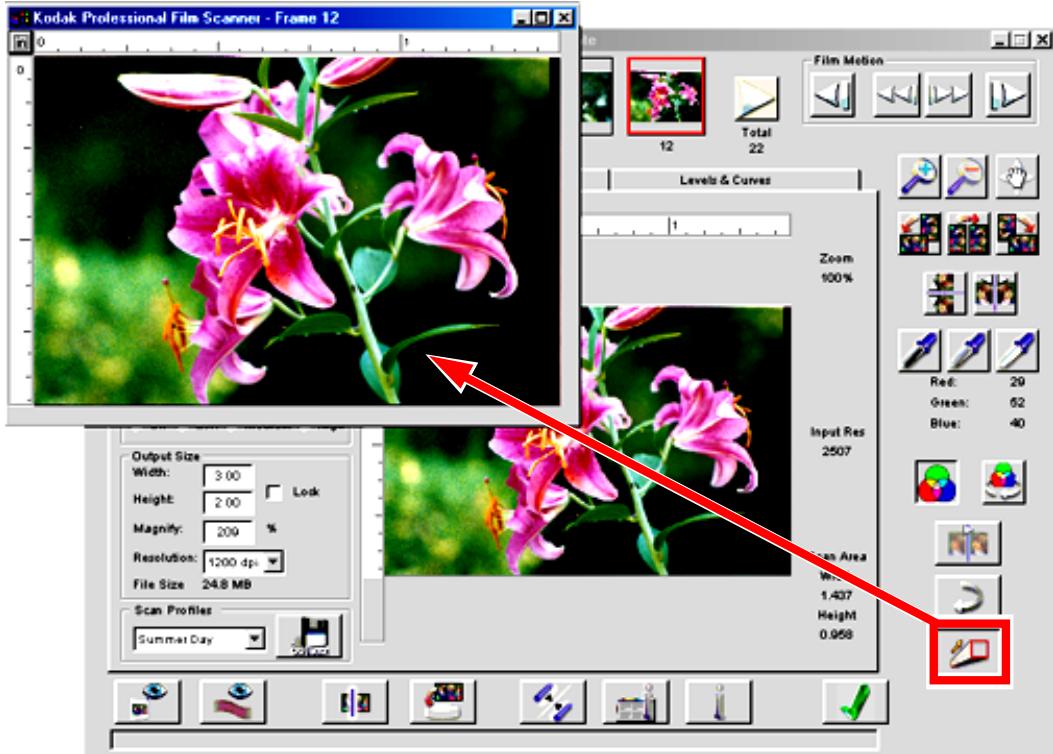
- (Optional.) Click the Image Window button to display a second window — the image window — that floats on top of the main window. You'll use this window to enhance the view of color changes made to the image; if you work with this window you should enlarge the window for a better preview.
Note: Opening this window is a convenience for you, and is therefore optional; the same functionality is available whether this additional window is opened or closed.
- (Optional.) Use the two zoom buttons to zoom in or out on the image. Clicking a zoom button turns it on, then click the image; turn it off by clicking the button again (or it turns off automatically when it reaches its limit).

- (Optional.) Once you zoom in, you can use the Move button to drag to a different area of the image in the window; click Move to turn it on, drag the image, then click the button again to turn it off.

- (Optional.) Use the color balance buttons on the main window to adjust color in the image as described in this step. The results of these actions are visible on the large image, but not on the thumbnail. (The thumbnail only reflects changes to rotation and flipping; other image adjustments are not shown on the thumbnail.)
Note that as you move the pointer over the image, the CMYK or RGB color values for the single pixel below the current pointer location appear to the right of the image screen. Whether you see CMYK or RGB values depends on the Output choice you have made in the Profiles area of the Settings tab.
or
- Click the Auto Balance button on/off (button down按钮 up) to control whether the Scene Balance Algorithm is applied or not. The Kodak-developed Scene Balance Algorithm (SBA) optimizes color balance and density. It is automatically on (down) for a Film Type of Negative or B&W; however, you can then click the button to turn it off, thereby removing the effects of the SBA. If you prescan with a Film Type of Reversal, the SBA is not applied by default and the button remains off (up); however, you can click it to activate the SBA.
- Use the Black, Gray, and White pointer buttons for rapid, automatic adjustment of the color balance of images. Two clicks are required for this feature to be performed. First you click on one of these buttons, for example the White Pointer button, at which time the pointer changes to an eyedropper representing the button. Then the second click should be on a spot in the image that you know should be white. The image is automatically adjusted for color balance based on forcing the spot you clicked to become white, and the results are immediately evident on the displayed image. If necessary,
click the button again to cancel the adjustment. You can also double-click on the Black or White pointer buttons for even more control of this function as explained in the Reference - Software (Black Pointer, Gray Pointer, and White Pointer) section of this manual.
After the second click, the button remains down, a visual indication that this click-balance feature has been applied to the image.
- Click the Default Balance button to apply the default color balance, thereby undoing any changes you've made with the Black, Gray, and/or White pointer buttons. However, this button does not undo the Scene Balance Algorithm applied with Auto Balance.
- (Optional.) Click the Undo button to undo the last function performed; one level of undo is supported.
- (Optional.) Choose a Sharpening level of Off, Low, Medium, or High to adjust the level of edge definition between image elements (pixels); high provides the most definition.

F. Fine-tune Color (Color Balance and Levels & Curves Tabs)
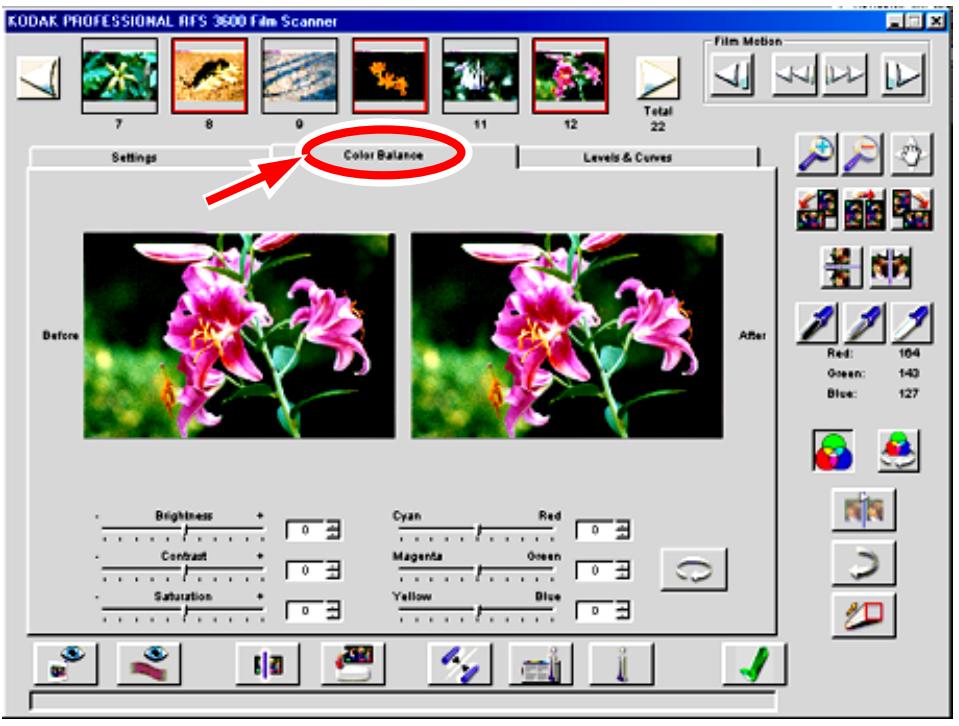
- (Optional.) Click the Color Balance tab to access controls for color balance, brightness, contrast, and saturation. Note that a Before and an After version of the current image appear on this tab; they are identical
when you enter the tab. When you leave this tab, the image in the After position becomes the updated image on all screens.
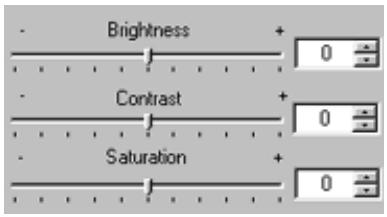
- (Optional.) Adjust the values for Brightness, Contrast, and Saturation by dragging their sliders or by entering an integer from -100 to +100 into the field next to the slider; the numbers represent percentage values.
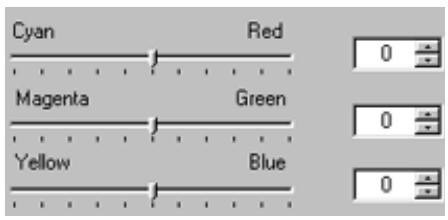
- (Optional.) Adjust the values Cyan/Red, Magenta/Green, and Yellow/Blue by dragging their sliders or by entering an integer from -100 to
+100 into the field next to the slider; the numbers represent percentage values.
- (Optional.) If necessary, click the Reset button to undo all color balance adjustments made to the image using the sliders during this visit to this tab. (The Undo button reverses only the last slider change while this Reset button will undo all slider changes you've made since entering this tab.)
- (Optional.) Click the Levels & Curves tab for more advanced tools for adjusting color. On this tab, the Before and After versions of the image work as described just above for the Color Balance tab.
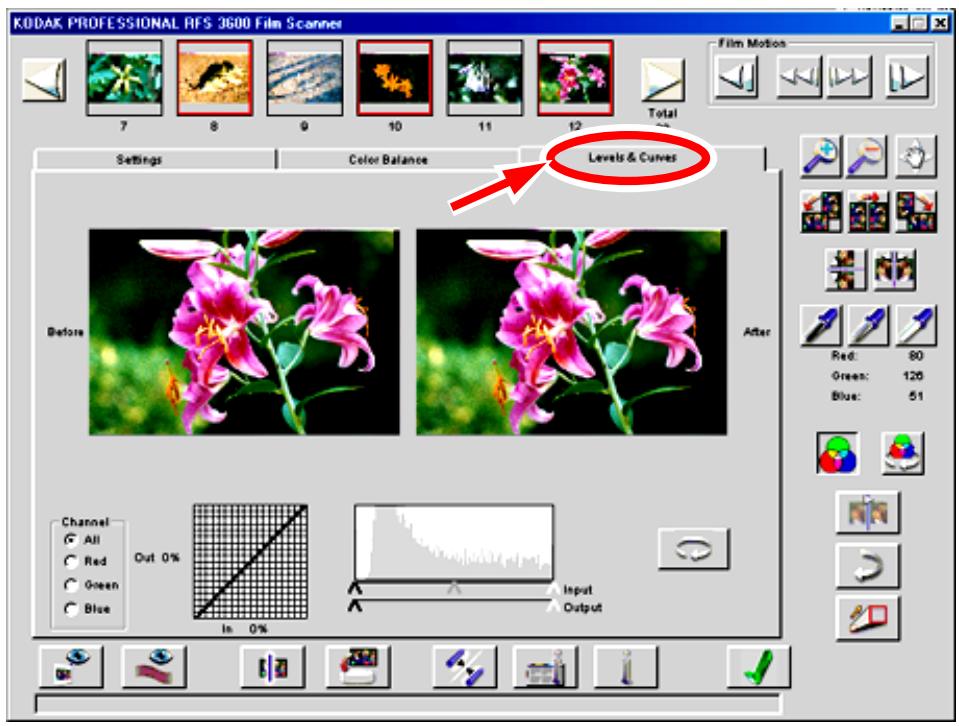
- (Optional.) Set the channel to All, or separately to Red, Green, or Blue; the histogram and tone curve choices (see just below) apply to your Channel selection.
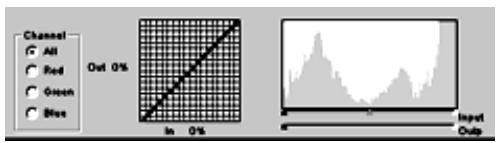
- (Optional.) Create up to 4 new points on the tone curve by clicking in the grid or Control-clicking (Windows) or Command-clicking (Macintosh) on the desired position on the Before image. Points on the curve are fixed until you move or delete them. Move a point by dragging it to a new location; delete a point by dragging it off the side of the curve.
The histogram and tone curve functions behave consistently with their implementations in Photoshop version 5.0 and later.
For information on the Input and Output sliders refer to Reference — Software (Channels, Histograms, and Curves).
- (Optional.) If necessary click the Reset button to undo all color adjustments made to the image during this visit to this tab. (The Undo button reverses only the last change while this Reset button will undo all changes you've made since entering this tab.)

G. Generate Scans
- Click the Scan button to perform a scan on the selected frame. The result of this scan will be an image in a Photoshop window.
- (Optional.) As an alternate to the Scan button, you can click the Scan to File button. The resulting image from this scan is saved directly as a file, without the intermediate step of opening the image in a Photoshop window. In the dialog box that appears, select a location for the file and the file type, and enter a filename.
H. Save Settings and Quit
Finally, you will save the current settings and leave the scanner software.
- (Optional.) Click the Manage Scan Profile button to save current settings from all three tabs; this provides a method you can use to recall a setup for future scanning tasks. Enter a name for the current profile on the dialog box that appears.
This feature allows you to create custom profiles (for example "Winter Outdoors") for specific or unique shooting conditions. Then, in a later work session, you can select these profiles by name from the drop-down list box that appears in this area.
- Remove the filmstrip from the scanner by pressing the Eject button on the top of the scanner, or by clicking the Reverse Eject or Forward Eject buttons in the Film Motion area of the scanner software.
- Quit the scanner software by clicking the Exit button. If you have prescanned images but not scanned them, you're asked to confirm that you want to leave the software. Even if you do not save settings with a name, as described above, the current scanner setting are saved, and become the default settings the next time the scanner software is opened.
- You are returned to Photoshop where you can work with the image as needed (assuming you have scanned the image to a Photoshop window).
- Edit and save the image in Photoshop as needed.
- Quit Photoshop.
- Turn off your computer.
- Turn off the scanner.
Reference - Hardware
The KODAK PROFESSIONAL RFS 3600 Film Scanner includes the following hardware features.
POWER CONNECTOR AND ON/OFF SWITCH
The power connector accepts the plug at the end of the AC adapter cable.
IMPORTANT: Use only the AC adapter supplied with your KODAK PROFESSIONAL RFS 3600 Film Scanner.
The On/Off switch turns the scanner on or off.
The green LED at the top right of the scanner indicates scanner status as follows:
The LED is on, but not flashing. The scanner is on.
- The LED flashes. This occurs during a variety of normal scanner actions such as completing a self-test, calibrating the light source, moving a filmstrip, or scanning your film.
- The LED flashes in an unending, repeated pattern. A problem has been detected with the scanner; turn off your computer system and scanner, and restart.
FOUR OPERATING BUTTONS
- Eject. This button ejects the filmstrip to the left, out of the scanner; this button has the same function as Eject Reverse in the scanner software. There is no eject button for a slide; a slide must be removed by hand.
- Reverse. This button performs two different functions. Tap the button to move the filmstrip to the left (reverse) in fine increments over the current frame. As you do, you can watch the film movement through
the viewer on the top of the scanner to ensure that the frame is properly centered. Press and hold this button for approximately one-half second to move the filmstrip one full frame to the left. This button performs the same two functions as the Reverse button in the scanner software.
-
Forward. This button performs two different functions. Tap the button to move the filmstrip to the right (forward) in fine increments over the current frame. As you do, you can watch the film movement through the viewer on the top of the scanner to ensure that the frame is properly centered. Press and hold this button for approximately one-half second to move the filmstrip one full frame to the right. This button performs the same two functions as the Forward button in the scanner software.
-
Scan. Press this button to perform a scan on all selected frames (thumb-nails with a red border in the scanner software); if no images are selected (you have created no previews), this button creates a scan from the current frame positioned in the scanner. To use this button, Photoshop must be open, and the scanner software must be running. The resulting image from each scan appears in a separate Photoshop window. This button performs the same function as the Scan button in the scanner software.
COMPUTER CONNECTIONS (SCSI AND USB)
The scanner can be connected to your computer with either a SCSI II connection or a USB connection.
SCSI Connectors and SCSI ID Controller
The scanner is equipped with two SCSI II connectors; this allows the scanner to be connected at any point in a SCSI chain. A switch on the back of the scanner allows you to turn the internal terminator on or off. Refer to Connecting the Scanner to Your Computer for complete details.
SCSI ID Switch
The SCSI ID dial allows you to set the desired SCSI ID for the scanner.
USB Port
The USB-ready scanner includes a USB port.
Reference - Software
Note that the software screen consists of a central area displaying three tabs, as well as additional buttons and controls that surround the tabbed area.
This software reference is divided into five sections:
- General Screen layout.
The Settings tab.
The Color Balance tab.
The Levels & Curves tab. - Working with Multiple Selected Images.
GENERAL SCREEN LAYOUT
Thamburger Images

This area displays thumbnails of frames you have prescanned. To generate thumbnails, click either the Prescan Frame button or Prescan Strip button. When working with a filmstrip (rather than a film slide), up to 6 sequential thumbnails can be displayed in this area, while with slides only a single image is displayed. This area of the screen is empty if you have not prescanned any images.
As you use the features of the software, only rotation and flipping are shown on the thumbnail; other image adjustments, although shown in the image area, are not reflected on the thumbnail.
The scanner software assigns sequential frame numbers to filmstrip thumbnails. These numbers, which appear below the thumbnails, do not necessarily match the frame numbers on the filmstrip. For example if the first image you prescan is from the middle of a filmstrip, it will still be numbered “1” under its thumbnail.
Total Number of Prescanned Images
The total number of images that have been rescanned from this filmstrip appears beneath the word "Total" on the screen, as shown above. If you have not rescanned the entire filmstrip, then this number will not match the total number of frames on the filmstrip.
Scroll Left and Scroll Right Buttons (Scroll Filmstrip Thumbs)

If more than six images have been prescanned, you can use the Scroll Left and Scroll Right buttons (one is at each end of the strip of thumbnails) to scroll through the thumbnail images. They do not move the filmstrip in the scanner; instead, they control the display of thumbnails for the frames you have already prescanned. Each click on one of these buttons scrolls thumbnails one frame to the left or to the right respectively. Scrolling does not affect the selection of thumbnails (those with a red outline), nor does it change the preview image displayed in the main image area in the center of the screen.
Selecting/Deselecting Buttons
By default, the first image prescanned is 'selected,' meaning that a red outline surrounds its thumbnail, and that a larger version of this image appears in the preview image area in the center of the screen.
You select a different image by clicking on its thumbnail, at which point the red outline surrounds the new thumbnail and is removed from the previously selected thumbnail. The new image replaces the previous image in the preview image area.
You can also select and work with more than one thumbnail at a time, as explained in Working with Multiple Selected Images.
Film Motion (Reverse Eject, Reverse, Forward, Forward Eject)
From left to right these four buttons represent Reverse Eject, Reverse, Forward, and Forward Eject; they generate commands that move the filmstrip in the scanner. Clicking Reverse or Forward moves the filmstrip one frame at a time in the designated direction. Clicking Reverse Eject or Forward Eject moves the filmstrip in the designated direction until the film is clear of the scanner. The buttons are not enabled unless there is a filmstrip in the scanner. There is no eject button for a slide; a slide must be removed by hand.
You can also move the filmstrip in either direction in fine increments, rather than a full frame at a time. This helps you ensure that an individual frame is properly positioned in the scanner. To do so:
- Macintosh. Option-click (hold down the Option key, click Reverse or Forward, release the key).
- PC-Compatible. Control-click (hold down the Ctrl key, click Reverse or Forward, release the key).
You can verify the positioning of the film by watching the frame through the view window on top of the scanner as you use these buttons. Once you have properly positioned the filmstrip, you can create thumbnails by clicking Prescan Frame or Prescan Strip, or you can scan images directly without creating a thumbnail by clicking Scan or Scan to File.
Zoom In and Zoom Out
Use these two buttons to zoom in or out on the preview image as follows:
- Click either zoom button to turn it on.
-
Click a spot in the preview image; the image is zoomed (in or out, depending on which button you clicked) and centered on the spot you click.
-
Click the same zoom button to turn it off (or it turns off automatically when it reaches its limit).
The current zoom percentage is displayed on the main window to the upper-right of the preview image; for example "Zoom 100% " indicates that the image is displayed at full size.
Move

Click this button to turn the pointer into a hand icon, which when dragged on the preview image, changes the portion of the image displayed. Click the button again to turn this function off. This action is useful when the image has been enlarged with the zoom function.
Image Rotation (90° Counterclockwise, 180°, 90° Clockwise)
Click the appropriate button to rotate the preview image, and its thumb-nail, 90^ counterclockwise, 180^ , or 90^ clockwise.
Flip Horizontal and Flip Vertical
Click the appropriate button to flip the previewed image, and its thumb-nail, horizontally or vertically.
Black Pointer, Gray Pointer, and White Pointer
Use these buttons — Black, Gray, and White pointers — to adjust the color balance of images. These buttons can be used on the preview image on the Settings tab, or in the Image Window, or with the After images on the Color Balance and Levels & Curves tabs. (If the Image Window is opened,
you must apply these features to the image in that window and not in the preview image or the After image beneath.)
As you use these buttons with one of those images, two clicks are required for this feature to be performed. First you click on one of these buttons, for example the White Pointer button; the pointer changes to an eyedropper representing the button. Suppose that you click the White Pointer; then the second click should be on a spot in the Settings tab image (or the After image on the other tabs), that you know should be white. The color balance of the image is automatically adjusted based on forcing the spot you clicked to become white, and the results are immediately evident on the After image. If necessary, click the button again to cancel the adjustment.
The Black Pointer and Gray Pointer perform the same function, but your second click should be on an area that should be black for the Black Pointer or an area that should be gray (also referred to as neutral) for the gray Pointer. With all three buttons, do not click a dark shadow or a bright highlight or an overexposed area.
Once you click on the image, the button remains down, an indication that you have performed that particular color balance.
You can also double-click on the Black or White pointer buttons to display a dialog window in which you can define numeric values for black or white. For example, if you know that the value 230 should indeed be white, you can double-click on the White Pointer button and enter 230 in the dialog box.
Let's explain how this button works in conjunction with the Auto Balance button.
- First, Auto Balance is turned on (the button is down) automatically for a Film Type of color Negative or B&W, and is turned off (the button is up) automatically for a Film Type of Reversal. However, you can then turn Auto Balance off or on manually if you wish.
- Now, you can use any of the three click balance buttons while Auto Balance is either on or off. If Auto Balance is on, the results of each click balance button is "added" to the existing effect of the Auto Balance button. However, while Auto Balance is off, just the result of your action with each click balance button is applied.
You can click the Default Balance button to cancel the effect of your work with the three separate click balance buttons.
For an explanation of the effect of these buttons when more than one image is selected, refer to Working with Multiple Selected Images.
CMYK or RGB Values
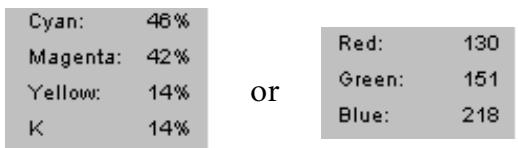
These fields display the color values for the single pixel below the current pointer location. (The Output Profile you have previously chosen on the Settings tab determines whether CMYK or RGB values appear.)
Auto Balance
Toggle this button on/off (button down按钮 up) to control whether the Scene Balance Algorithm is applied or not; the result of this action is immediately apparent on the image. The Kodak-developed Scene Balance Algorithm (SBA) optimizes color balance and density during first-time scans of color negative and B&W films.
If you select a Film Type of color Negative or B&W, the SBA is activated by default and this button will automatically appear in the on position (down); however, you can then click the button to turn it off, thereby removing the effects of the SBA. If you select a color Reversal (slide film) film type, the SBA is not applied by default and the button remains off (up); however, you can click it to activate the SBA.
You can use this button in concert with any of the click balance buttons (Black, Gray, and/or White pointers), in which case they work together, rather than one of them canceling the effect of the other.
For an explanation of the effect of this button when more than one image is selected, refer to Working with Multiple Selected Images.
Default Balance
Click this button to apply the default color balance, thereby undoing any changes you've made with the Black, Gray, and/or White pointer buttons. However, this button does not undo the Scene Balance Algorithm applied with the Auto Balance feature; instead, turn off Auto Balance by clicking its button. Additionally, Default does not undo changes you have made on the Color Balance tab or on the Levels & Curves tab, since those two tabs have their own reset buttons.
For an explanation of the effect of this button when more than one image is selected, refer to Working with Multiple Selected Images.
Auto-Focus Slide
Auto-Focus Slide only applies to slides (filmstrips are automatically positioned at the optimal focus point of the scanner). If there is a crop box on the image, then focusing is concentrated over that area; otherwise a general focus occurs.
Click this button and an auto-focus occurs for the mounted slide in the scanner. Since the thickness of slide mounts can vary, use this feature to determine the correct plane of the film in the scanner.
Once auto-focus is complete, a new prescan is performed automatically.
If you are not satisfied with the results of the auto-focus function, you can make additional incremental adjustments to the position of the slide in the scanner. To do so, click on the Auto-Focus Slide button again; a dialog box appears indicating that auto-focus has already been run, and asking if you want to override that with a manual focus. If you click No, auto-focus is performed again; however, if you click Yes, a box appears showing the current focus position, an integer from 1 to 30. You can now change the focus position by entering another integer focus value. For example, if the dialog box displays the value 17, you might try changing the focus in one
step increments, in this case by changing it to 16 or to 18. When you click OK, a new prescan is performed.
The focus position is maintained from slide to slide until you change it at some later point.
Undo

Click this button to undo the last function performed; one level of undo is supported. If you click this button a second time before you take another action, it reverses the effect of the first click.
This Undo button functions differently from the Reset button on the Color Balance and the Levels & Curves tabs. If you enter one of these tabs and make multiple changes there, the Undo button will only reverse the last change while the Reset button will undo all changes you've made since entering the tab.
Image Window
Click this button to display a second window — the Image Window — that always floats on top of the main window. Since it can be larger than the image area on the main screen, it allows you to view the results of your image editing in greater detail, and therefore helps you to determine if additional adjustments are required before you perform a final scan. All of the editing functions of the main window — including all functions on the tabbed areas — remain accessible in the background, and the results of your image edits appear both in the Image Window and in the tabbed area. When you are working on the Color Balance tab or the Levels & Curves tab, this Image Window displays the After version of the image.

You may need to resize and reposition the Image Window to allow access to the needed controls on the main window. To resize the Image Window move the pointer to an edge of the window; when the pointer changes to a resizing pointer, drag to resize the window. You can also use the normal window controls found in the Macintosh operating system or in Microsoft Windows.
If the Image Window is opened, controls that interact with an image — Black, Gray, and White pointer buttons, Move, Crop, Zoom, and some features on the Levels & Curves tab — must be performed on the image in that window, not in the After image beneath.
Only one Image Window is available, and if you change the selected image in the main window, the image in the Image Window also changes to match the selected image below.
Prescan Frame
Click this button to perform a prescan and create a preview of the single frame currently located in the scan position in the scanner.
The resulting thumbnail replaces any thumbnails already displayed in the main window; for that reason, you may wish to complete final scans of any frames currently represented by displayed thumbnails before you click this button to perform a new prescan.
Prescan Strip
Click this button to create a preview scan of each of the 'remaining' frames in the filmstrip. This action advances the film from left to right through the scanner from its current position to the end of the filmstrip. The resulting thumbnails replace any thumbnails already displayed in the main window; for that reason, you may wish to complete final scans of any currently displayed thumbnails before you click this button to prescan the strip.
The scanner software assigns sequential frame numbers to filmstrip thumbnails. These numbers, which appear below the thumbnails, do not necessarily match the frame numbers on the filmstrip. For example, if the first image you prescan is from the middle of a filmstrip, it still will be numbered “1” under its thumbnail.
Click the cancel button that appears on the dialog window to cancel this action; the prescan of the current frame is completed.
Scan
Click this button to perform a scan on all selected frames (thumbnails with a red border). The resulting image from each scan appears in a separate Photoshop window.
If no images are selected (you have created no previews), this command scans the single film frame positioned in the scanner.
Because the scanner accepts filmstrips from 3 to 36 frames in length, you can select all images (click the thumbnail at one end of the filmstrip, scroll thumbnails, then shift-click the thumbnail at the other end) and then click the Scan button to batch scan up to 36 frames.
To stop a scan that is already in progress, click the cancel button in the dialog box.
For an explanation of the effect of this button when more than one image is selected, refer to Working with Multiple Selected Images.
Scan to File
Click this button to perform a scan on all selected frames (photographs with a red border). The resulting image from each scan is saved directly as a file, without the intermediate step of opening the image in a Photoshop window.
If no images are selected (you have created no previews), this command scans the single film frame positioned in the scanner.
When you click this button, you are presented with a dialog window on which you select the desired file format for all scanned images and the location where the files should be saved. Available file formats include TIF and JPEG (available in several quality and resolution levels). Additionally when multiple images are selected, you provide information from which the filename of saved images is generated. You provide a base filename, like "smithwedding," and the software will append sequential numbers, resulting in filenames such as smithwedding001.tif, smithwedding002.tif, smithwedding003.tif, etc.
Because the scanner accepts filmstrips from 3 to 36 frames in length, you can select all images (click the thumbnail at one end of the thumbnail strip, scroll thumbnails, then shift-click the thumbnail at the other end) and then click this one button to batch scan up to 36 frames.
To stop a scan that is already in progress, click the cancel button in the dialog box.
For an explanation of the effect of this button when more than one image is selected, refer to Working with Multiple Selected Images.
Calibration (Light Source)
The light source is calibrated each time you turn on the scanner. However, you can also control the frequency of the light source calibration. Click this button, and on the dialog window that appears, indicate whether calibration should be performed before every frame scanned, or whether it should be performed once for each filmstrip. If it is performed once for each filmstrip, the calibration occurs when the first prescan is performed for that filmstrip.
When scanning slides, the calibration is performed before each scan.
About (Version Numbers and Firmware Upgrade)
Click this button to display scanner information (including the software and firmware version numbers), and an Upgrade button.
Click Upgrade to initiate a firmware upgrade; firmware is the software within the scanner. You begin this process by receiving a new version of the firmware, perhaps by downloading it from http://www.kodak.com. Downloading places a file on your hard disk. When you run that file, the firmware is extracted and saved to the default location our your hard disk.
Then you use this button to copy that firmware file from your hard disk into the scanner. When you click the button, a dialog window appears allowing you to select the firmware file named 3600_nnn.bin, where nnn represents version number. For example, if nnn is 101, it indicates firmware version number 1.01. If you have followed the default installation procedure, that filename should appear in the dialog box; otherwise locate the firmware file in the location at which you saved it during initial software installation. Initiate the upgrade and the new firmware will be downloaded to your scanner; wait while the upgrade procedure is completed.
CAUTION: It is important that you wait and allow the upgrade to complete before performing any other computing activity. During the upgrade
you should not switch to any other computer program. You should not attempt to run any other programs. You should not load or unload any film from the scanner. You should not press any buttons on the scanner. You should not disconnect the scanner until the upgrade is complete.
Help

Click to open an electronic version (in PDF format) of this user manual. The file opens in Adobe Acrobat Reader. Once in this manual, you can click on entries in the Contents or the Index, or on cross-references in the text, to jump directly to that material in the manual.
Exit
Click to close the scanner software window.
When you click Exit to close the scanner software, if you have prescanned frames and have not performed a final scan on all of those frames, a confirmation box is displayed.
If you choose not to save the settings with a name (refer to Reference – Software, Manage Scan Profile for additional information), the current settings are still retained by the software and become the opening software settings the next time you enter the software. However, in this case you will not be able to recall them at a later time as you can by saving them with a name.
For an explanation of the effect of this button when canceling prescans or scans of multiple images, refer to Working with Multiple Selected Images.
Status Bar
Ready
The status bar is located across the bottom of the window. It displays scanner status messages and a brief description of each control appears here when the pointer is passed over the control.
SETTINGSTAB
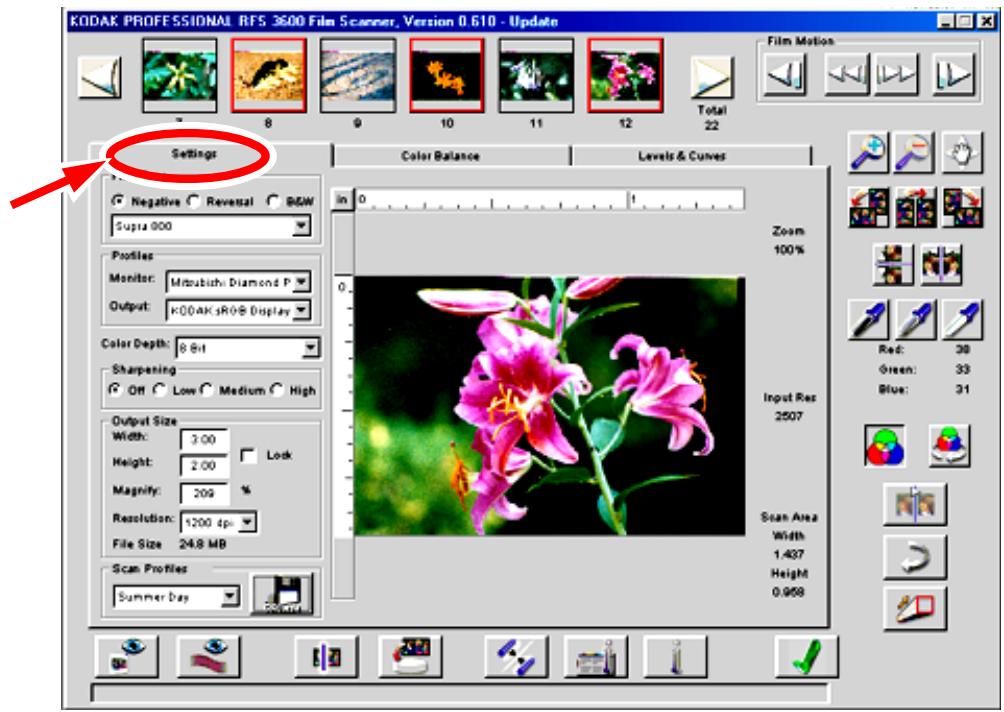
The Settings tab presents general controls for the scanning process.
All of the settings you choose on this tab are automatically saved from work session to work session. Therefore, when you've completed your scanning and returned to Photoshop, the next time you use the scanner, your most recent settings will be in effect.
In addition, as explained later in this section, you can save settings – called a profile – from all three tabs with a name of your choice (for example “Winter Outdoors”); you can then recall those named settings. This feature allows you to quickly reset all values on this tab to a set of values that you previously saved.
Image Area
The preview image area allows you to determine if additional adjustments are required before you perform a final scan.
When you perform a prescan, either by clicking Prescan Frame or Prescan Strip, the first image prescanned is selected and displayed in the preview
image area of this tab. If you select another image by clicking on its thumb-nail in the filmstrip thumbnail area at the top of the window, the first image is deselected and that new image replaces the image previously displayed here.
As you make changes — for example adjusting color with the click pointers, or making changes on any of the three tabs — the results of those changes are reflected in this image.
For an explanation of working with multiple selected thumbnails, refer to Working with Multiple Selected Images.
Units and Rulers
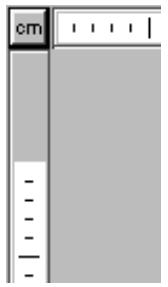
The Units button appears to the upper-left of the image area, at the intersection of the vertical and horizontal rulers. Click the Units button to toggle between centimeters (cm), inches (in), and pixels (px). The units you choose here are used in all software fields that use a unit of measure.
Cropping
You crop an image before scanning by dragging the pointer from corner to corner across the area you want to crop; a crop box surrounds the selected area. You can resize, move, or remove a crop box as follows:
- To resize an existing crop box, move the pointer over any edge or corner of the crop box; then drag to the desired size.
- To move an existing crop box, move the pointer inside the crop box; then drag the box to the desired location.
- To remove the crop box, click outside of the crop box on the preview image.
For an explanation of how the crop box works with Width, Height, Lock, Magnify, Resolution, and File Size, refer to Output Size and Input Values.
For an explanation of how the crop box works with multiple selected thumbnails, refer to Working with Multiple Selected Images.
Film Type (Negative, Reversal, B&W, and Film Terms)
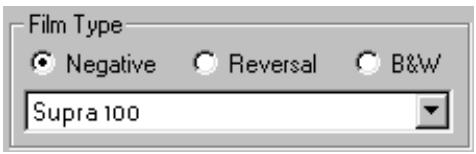
Use the radio buttons to select color Negative, color Reversal (slide film), or B&W negative (black & white). The Scene Balance Algorithm (SBA) is automatically applied for color and B&W negatives, but is not automatically applied for a Reversal. However, you can turn on/off the SBA for any film type by toggling the Auto Balance button on/off (button down/button up).
Select the film term from the range of Kodak-developed film types that appear in the drop-down list provided with the scanner software; a different list of film types is presented for each of the three Film Type radio buttons.
As new or updated film terms become available, you can download them from the Kodak web site, http://www.kodak.com, and install them using by following the procedures posted at that web site.
Profiles (Monitor and Output)
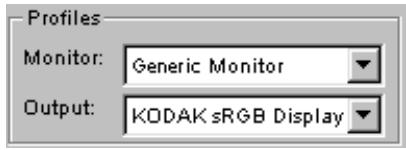
Select your color monitor from the drop-down Monitor list provided with the scanner software; if your monitor is not listed, choose Generic Monitor. The previews scans created by the scanner software will be adjusted based on the monitor you choose.
Select your output space (for example a specific printer, or a monitor if the output is intended to be viewed only on a monitor), from the drop-down Output list of International Color Consortium (ICC) profiles provided with the scanner software. ICC profiles help reproduce colors accurately on
different devices and in different applications. If your desired output color space is not listed, choose KODAK sRGB Display.
The Output Profile you choose determines whether color values on the right of the screen appear as CMYK or RGB values.
Note: If your Monitor or Output profile is not available, you may be able to download that profile from the web site of the vendor of that device. Doing so allows you to add other RGB, Lab, and/or CMYK profiles. If you are working on a Macintosh, when you download a new ICC profile (its filename will have a '.icm' filename extension), place that profile in the ColorSync Profiles folder in the System Folder. On a PC-compatible, when you download a new ICC profile, if you are working with Windows 98 SE place it into location C:\WINDOWS\System\COLOR, but if you are working with Windows 2000 or Windows NT 4.0 place it into C:\WINNT\system 32\color.
Color Depth

Set Color Depth by choosing either 8 Bit or 12 Bit per channel from the Color Depth drop-down list. With either setting the scanner performs a 12-bit scan (or prescan). However, the setting you choose determines how much data are then transferred from the scanner to the scanner software; with 12 Bit selected, the full 12 bits of data per pixel are transferred, while with 8 Bit only 8 bits are transferred. Transferring less data (8 bits) requires less time; however, transferring more data (12 bits) means the data reaching the scanner software are of higher quality.
Even if you select 8 Bit, once the data are transferred to the scanner software, they are expanded to 12 bits; therefore with either choice (8 Bit or 12 Bit), further image processing in the scanner software is done in 12-bit mode.
Finally, with either choice, when the data are moved into Photoshop from the scanner software, Photoshop converts the data into a single 8-bit byte per pixel.
When you are working in CMYK, there are 4 channels of data, while in RGB there are 3. When working with black and white film, there are 3 channels, each containing the same data.
Sharpening
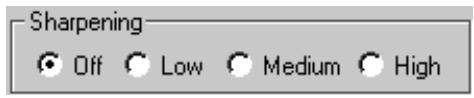
Use these choices to adjust the level of edge definition between image elements (pixels). Choose Off, Low, Medium, or High as the sharpening level; high provides the most definition. You may need or want to scan the image, and then return to Photoshop to view the image and determine if you are satisfied with the effect of a revised Sharpening value. After scanning an image you can drag the scanner window to the side to view (but not modify) the image in Photoshop without leaving the scanner software; in this way, you can ensure the correct Sharpening selection.
Output Size and Input Values (Width, Height, Lock, Magnify, Resolution, File Size)
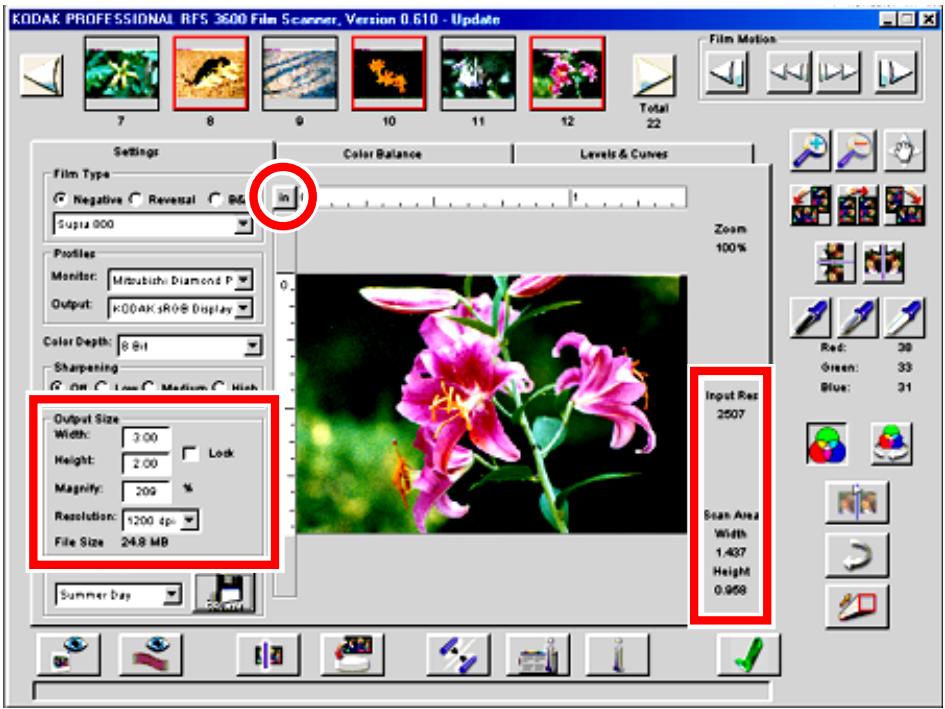
NOTE: A brief explanation of these features appears in the tutorial section of this manual in Set Output Size.
The input values and output values in the red boxes above are all interrelated. This means that a change in one of the parameters may change another parameter, even if you have entered a value for the second setting.
Rather than explaining these choices one-by-one, they are explained together in this section. A helpful way to consider the relationship between these elements is to understand that some of these parameters are part of the input settings to the scan while others are part of the output from the scan. Let's look at each separately; note that red boxes have been added to the screen above. The input values are shown within the red box on the right side of the preview image above, and the output values are shown within the red box on the left side of the preview image above.
- Input. "Input values" are the Input Res (scan resolution), and the Height and Width of the area to be scanned.
The scan resolution is displayed in dots-per-inch (dpi). You do not control the value of the scan resolution directly and you cannot enter its value; instead its value (from 72 dpi to 3600 dpi) is determined as a function of other values as explained in this section.
If no crop box is present, then the input Height and the input Width height begin as the full size of the 35mm frame, although they may change based on other settings. If a crop box is present then it defines the input Height and Width.
The units of measurement for the Height and Width — centimeters (cm), inches (in), or pixels (px) — are displayed in the button at the intersection of the rulers at the top left corner of the preview image — within the red circle in the figure above. Change the measurement unit as desired by clicking on the units button at the intersection of the rulers.
- Output. "Output values" are the desired Width and Height of your image for the scan (in the Output Size area above), as well as the output Resolution.
Again the units of measure for the Width and Height — centimeters (cm), inches (in), or pixels (px) — are displayed in the units button at the intersection of the rulers at the top left corner of the preview image — within the red circle in the figure above.
The output resolution appears in the Resolution drop-down list with units in dots-per-inch (dpi). You select the output Resolution from the drop down list of values. A Custom choice allows you to enter a numeric value of your choice from 72 dpi to 7200 dpi that is not found on the drop down list.
Let's discuss the other values in the Output Size area.
- Lock, when on, freezes the output dimensions (width and height), and therefore the aspect ratio of the crop box if present. However, you can still move or remove the crop box.
For example suppose you are working in inches and have specified an output of 6-inches wide by 4-inches high. If you check Lock on, then the Width and Height fields will not change as you change other parameters.
- The Magnify field contains the magnification value, stated as a percentage; its relationship to other values is explained below.
- The File Size area displays the estimated size of the final image file in megabytes (MB) that will result from a scan using the current settings.
Now let's look more closely at the relationship between these items. It's important to realize that if you change one of these values, the software may change other values in order to keep their relationship intact. Also changing one or more values may result in a situation that would force another setting beyond of the range of the scanner; when this happens the software warns you that it cannot accept your change.
Formulaic Relationships
Several formulas show the relationship between these parameters.
- Scan resolution = Output resolution x Magnification
This formula relates resolution with magnification. Consider the common example in which the size of the output image is larger than the size of the 35mm frame. Then the resolution of the input scan must be spread out to cover the larger area of the desired output image. Therefore as the magnification increases (the output image gets larger), the output resolution must decrease or the scan resolution must increase.
Whether it is the scan resolution that changes, or the output resolution, is described below.
- Output Width = Input Width x Magnification
Output Height = Input Height x Magnification
These formulas relate output and input width (and height) with magnification. Here, as an example, if we double the magnification then the output width (and height) will double.
Numeric Examples
Let's look at several numeric examples of the relationships between these items. You'll note below that the software will change some parameters in the formulas, but not others. A table following the examples provides the specifics of how a change in one parameter will change other parameters.
- Suppose that you choose a Magnify value of 200% , and an output Resolution of 1500 dpi. In this case the scanning software uses formula number 1 above to compute the scan resolution at 3000 dpi, that is 1500 dpi x 200% .
If you change the output Resolution to 1000 dpi, the scan Resolution changes to 2000 dpi and the magnification stays at 200% .
However, suppose that you change the output Resolution to 2000 dpi. This means that the scan resolution would have to be 4000 dpi; however, that exceeds the 3600 dpi capability of the scanner. In this case you will see a message and then the software would reduce the output Resolution to 1800 dpi, causing the scan Resolution to go 3600 dpi.
- Suppose that you enter an output Height of 30mm and a Magnify value of 200% . Here the software uses the formula to compute an input height of 15mm ; since this is smaller than the frame size, a crop box will appear automatically over the image. Move the crop box as desired.
If you change the output Height to 20mm , the software changes the input height to 10mm , and changes the size of the crop box.
However, suppose that you change the output Height to 50mm . This means that the input height should be 25mm ; however, that exceeds the height of 35mm film (24 mm assuming the image has not been rotated). In this case you will see a message and then the software would reduce the output Height to 44 and set the input height to 22.
- Suppose you set the Magnify value to 200% , the output resolution is 900 dpi, the output height to 30~mm , and the output Width is 50mm . The scan Resolution will be computed to 1800 dpi, the input height will be 15mm , and the input Width will be 25mm .
Assume the output Width and Height are unlocked. If you double the magnification to 400% , the output data are changed to resolve the formulas. Here the output Resolution is halved to 450 dpi, the output Height is doubled to 60mm , and the output Width is doubled to 100mm .
Suppose that at the start of this example you had locked the output Width and Height. If you then double the magnification to 400% , now the input data change to resolve the formulas. In this case the scan resolution is changed to 3600 dpi, the input Height changes to about 7mm, and the input Width is halved to 15 mm.
Suppose that with Lock still on, you change the Magnify value to 800% ; again input data change to resolve the formula. Input Height changes to about 3mm and input width changes to about 7mm . However, these conditions would require a resolution of 7200 dpi, which is beyond the maximum capability of the scanner (3600 dpi). In this case you see a message, and the software would reduce input and output.
- Finally, assume an input Height of 22mm , a Magnify value of 200% , and an output Height of 44mm .
Assume the output Width and Height are unlocked (Lock is unchecked). If you draw a crop box on the image that changes the input height to 11mm , the output height is reduced to 22mm .
However, if output Width and Height are locked (Lock is checked), and you draw the same crop box, now the magnification is doubled to 400% . This causes the output Resolution to be halved and the input width to be halved (to maintain the locked aspect ratio).
Relationships Between Variables
In general the following rules apply to these computations:
-
If you change an output value (Height, Width or Resolution), the associated input value (Height, Width or Resolution respectively), is automatically adjusted. An exception to this occurs when a limitation on the input value would be broken, that is when the change would result in exceeding the physical dimension of the frame or the maximum or minimum resolution.
-
If you change the magnification, the output Width, Height, and Resolution are automatically adjusted if Lock is off; otherwise if Lock is on, the input Width, Height, and Resolution are automatically adjusted. (Changing input Width and Height means the crop box changes.)
-
If you change the crop box (therefore changing the input Width and Height), the associated output Width and Height are changed if Lock is off; otherwise if Lock is on, the magnification is changed.
-
If the software cannot complete the scan with the settings you've entered, it presents a message indicating the choices you have to resolve the conflicting data.
The rules above are presented in a different format in the following table.
Will changing the parameter in the left column change the parameter below?
| Output Res. | Output Height | Output Width | Mag.% | Crop Box | Input Height | Input Width | Scan Res | File Size | |
| Output Res. | Yes | Yes | |||||||
| Output Height | Yes | Yes | Yes | ||||||
| Output Width | Yes | Yes | Yes | ||||||
| Mag.% | Yes, if Lock is off. | Yes if Lock is on. | Yes | ||||||
| Crop Box | Yes, if Lock is on. | Yes, if lock is off. | Yes, if Lock is on. | Yes, to match the crop box. | Yes | ||||
| Input Height | Yes | ||||||||
| Input Width | Yes | ||||||||
| Scan Res. | (You cannot change these items directly.) | ||||||||
| File Size | |||||||||
Manage Scan Profile
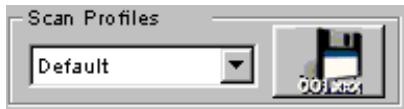
Click the Manage Scan Profile button above to save current settings; this provides a method you can use to recall settings for future scanning tasks. Values are saved for all items on the Settings, Color Balance, and Levels & Curves tabs.
To save these settings, enter a name for the current settings on the dialog box that appears. This feature allows you to create custom settings (for example "Winter Outdoors") for specific or unique shooting conditions.
You then retrieve one of your saved settings from the drop-down list. You can also retrieve the original settings shipped with the scanner by choosing Default from the drop-down list. Finally, you can also delete existing scan profiles as needed while working on this dialog box.
This feature is useful for saving and recalling settings while working on different filmstrips or slides across work sessions.
It may also be helpful to save settings during the same work session while working on a single filmstrip or slide. You can use this feature to save a variety of interim setups as you work with one image; when you decide on the "best" settings from those you have saved, recall and use those for the scan. Then you can use the Delete feature to delete your interim setups.
You can also use this feature while working your way through scans on one filmstrip; you can establish and save a base set of controls for the whole filmstrip. Then for different images on the filmstrip, recall that base set, make necessary alterations and scan.
Scan Resolution
Input Res 3600
This field, to the right of the image, displays the scan resolution, a value from 72 to 3600 dpi. Refer the Output Size and Input Values for more detailed information.
Scan Area
Scan Area Width 3.639 Height 2.433
This area displays the current width and height of the area of the frame to be scanned. If a crop box appears, its dimensions are reflected here; otherwise it's the full frame size. The units of measurement — centimeters, inches, or pixels — for these values are displayed at the intersection of the
rulers at the top left corner of the preview image on the Settings tab. Change that unit as desired by clicking on the units button at the intersection of the rulers.
Refer to Output Size and Input Values for more detailed information on Scan Area.
COLOR BALANCE TAB
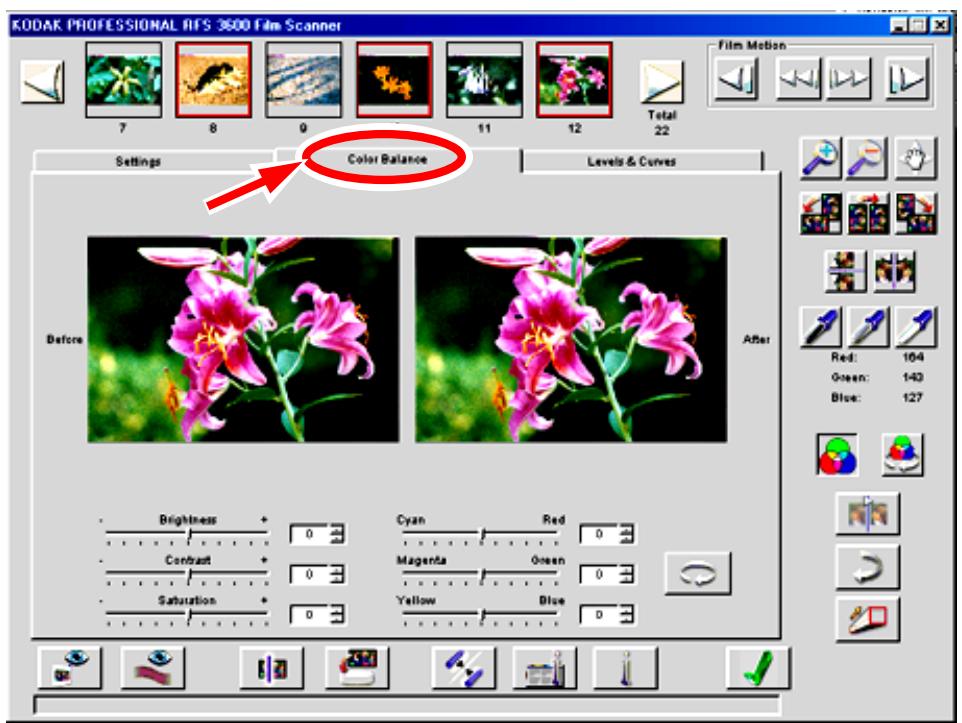
The Color Balance tab displays a Before and an After version of the current image, as well as slider controls.
When you enter this tab, the Before and After versions of the image are identical. Then, as you make changes while viewing this tab, the Before image remains unchanged, but the After image shows the results of the changes. The After image reflects changes from controls on this tab, as well as changes made with controls on the right of the screen outside of the tabbed area (White, Gray and/or Black pointers, zooming, flipping, rotat-
ing, and so on). When using the White, Gray, and/or Black pointers you can click only on the After image.
When you leave this tab, the image in the After position becomes the updated image on all screens.
Brightness, Contrast, Saturation, Cyan/Red, Magenta/Green, and Yellow/Blue
You can make adjustments on this tab for Brightness, Contrast, Saturation, Cyan/Red, Magenta/Green, and Yellow/Blue. Adjust these controls by dragging their sliders or by entering an integer from -100 to +100 into the field next to the slider. The numbers represent percentage values; the minimum value is -100% and the maximum value is +100%.
Reset

Click the Reset button to undo color balance adjustments made to the image with the sliders during the current visit to this tab. When you click this button, the After image is replaced with the image it displayed when you entered this tab.
The Undo button functions differently from this Reset button. If you make multiple changes to the sliders on this tab, the Undo button reverses only the last slider change while the Reset button will undo all slider changes you've made since entering this tab.
LEVELS & CURVES TAB
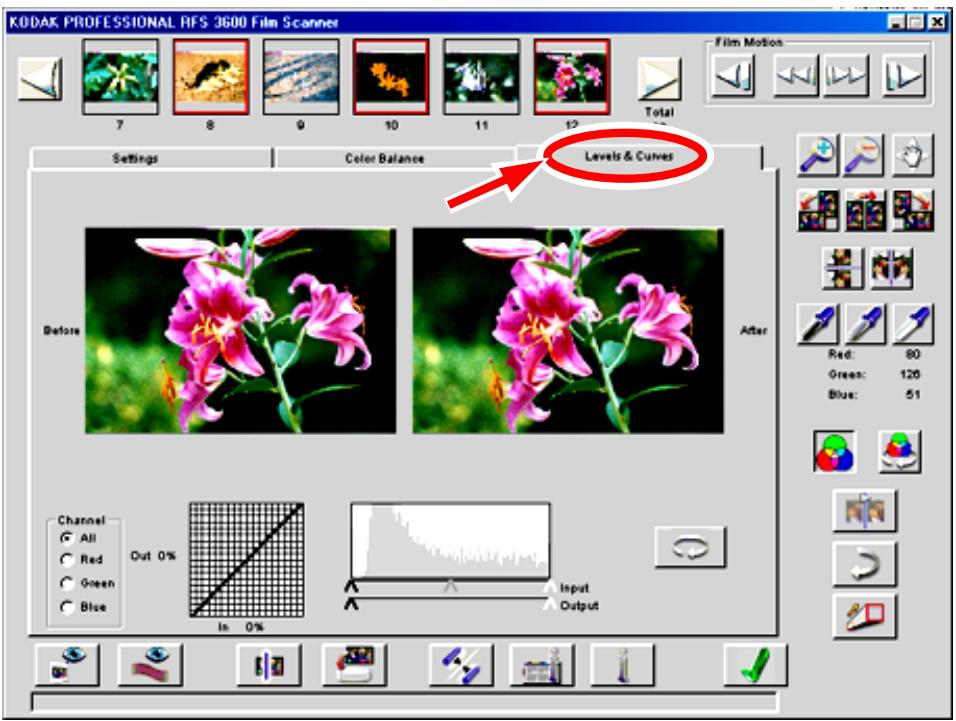
The Levels & Curves tab provides access to the more advanced tone curve and histogram functions, and displays a Before and an After version of the current image.
When you enter this tab, the Before and After versions of the image are identical. Then, as you make changes while viewing this tab, the Before image remains unchanged, but the After image shows the results of the changes. The After image reflects changes from controls on this tab, as well as changes made with controls on the right of the screen outside of the tabbed area (White, Gray and/or Black pointers, zooming, flipping, rotating, and so on). When using the White, Gray, and/or Black pointers you can click only on the After image.
When you leave this tab, the image in the After position becomes the updated image on all screens.
Channel, Histogram, and Curves
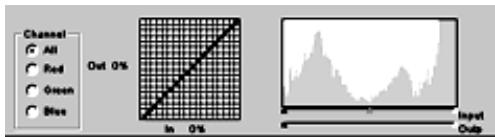
These functions behave consistently with their implementations in Photoshop version 5.0 and later.
Adjustments to the curve and the use of the White, Gray, and/or Black pointer buttons and Auto Balance functions cause the histogram to change; but changes to the histogram do not cause the curve to change.
The X- and Y-axis tone curves are based on brightness, with shadows at 0% and highlights at 100% . You create up to 4 new points on the tone curve by:
- Clicking in the grid.
- Command-clicking (Macintosh) or control-clicking (Windows) on the desired position on the Before image. The brightness value for the pixel you've clicked appears on the curve at that input brightness level.
Points on the curve are fixed until you move or delete them. Move a point by dragging it to a new location; delete a point by dragging it off the side of the curve.
Make the appropriate Channel choice to perform the histogram and curve functions on All colors, or separately on the Red, Green, or Blue channel. (If you are working in CMYK, these channel values are still shown in RGB.)
In the histogram, above the Input and Output sliders, the x-axis range contains values from 0-255, and the y-axis is the relative number of pixels with each of these values. Suppose you had an image that was "flat" in color, but nicely exposed; you would have a histogram with a hump in the middle. Perhaps the lowest value on x-axis is 40 and the highest is 200, indicating that the image does not have a lot of dynamic range.
You can now use the Input and Output sliders to increase your contrast range to a full range of values as follows:
-
Drag the white slider on the Input scale to the position where the hump in the curve in this example ends at 200 on the x-axis. This causes the software to take the values at 200 and remap them to a new value of 255. This action remaps all the values from 40-200 to a new range of 40-255.
-
Now drag the black slider on the Input scale to 40, the other end of the hump in this example. This remaps 40 to the value 0.
You now have an image that has the full range the system can display, all 8 bits from 0-255.
The opposite actions are true for the Output sliders. If you drag them in, you decrease your contrast because you are no longer using the full output range of your output device.
Reset

Click the Reset button to undo all levels and curve adjustments made to the image during the current visit to this tab. When you click this button, the After image is replaced with the image it displayed when you entered this tab.
The Undo button functions differently from this Reset button. If you make multiple changes to the levels and curve on this tab, the Undo button reverses only the last change while the Reset button will undo all levels and curve changes you've made since entering this tab.
WORKING WITH MULTIPLE SELECTED IMAGES
This section explains the action of the scanning software when you work with multiple selected images.
Selecting Multiple Images
First we'll describe how to select multiple images; after completing the steps below, a red border will appear around each of the thumbnails of all selected images. If you select multiple images, the last thumbnail you click is displayed in the main image area.
- You can select contiguous or noncontinuous frames by following standard selection methods for your operating system (PC or Macintosh). As you do, you can use the Scroll Left and Scroll Right buttons to move additional thumbnails into view before selecting additional frames.
-
You can deselect a single image by clicking on another thumbnail.
-
You can deselect multiple images by clicking on another thumbnail.
Scanning Multiple Images
If you select multiple images and then scanned them, the settings you have previously established for each image are applied individually to each of those images during the scan. Therefore you can select a single image and establish its settings, select another image and establish its settings, and so on. Then you can select all of these images at one time and scan them in one operation; each image will have its own settings applied.
NOTE: When discussing 'settings' here, we mean all parameters in the tabbed areas as well as the parameters outside of the tabbed area, except for Film Type, Profiles, Color Depth and Sharpening on the Settings tab.
As you change settings, the results of those changes are visible in the image area; thumbnails are not updated (except for rotating and flipping).
You can also select multiple images and establish settings in one step to be applied to all of the images; these common settings are retained individually for each of the selected images, just as if you had selected them one-by-one and given each the same settings. You can then select another group of images and establish common settings for them. Then, if you select some of the images from the first group and some from the second group, and then scan the images in one operation, the software applies the separate settings you have established for each image.
When multiple frames are selected, the values displayed on the screen are those for the frame shown in the image area. Since each selected image may have different settings, the screen settings may not be the settings applied to all selected images.
Finally, if you click the Exit button on the dialog box when scanning multiple images, the scanning is completed for the current film frame, scanned images completed to this point are retained, and then the scanning is cancelled for any remaining frames.
Software License Agreement
EASTMAN KODAK COMPANY
WE ASSUME YOU HAVE CAREFULLY READ THE FOLLOWING TERMS AND CONDITIONS DURING SOFTWARE INSTALLATION AND USE OF THIS FILM SCANNER.
Eastman Kodak Company (Kodak) provides this software and licenses its use worldwide.
You assume responsibility for selection of the software to achieve your intended results, and for installation, use, and results obtained from the software.
LICENSE
You may:
a. use the software;
b. copy the software onto one or more computers only for the purpose of operating the equipment with which this software was provided (the "Related Equipment") or into any machine-readable form for backup purposes in support of your use of the software;
c. transfer the software and license to another party to whom you also transfer the Related Equipment, if the other party agrees to accept the terms and conditions of this Agreement. If you transfer the software, you must at the same time either transfer all copies to the same party or destroy any copies not transferred.
You must reproduce and include the copyright notice on any copy of the software.
YOU MAY NOT USE, COPY OR TRANSFER THE SOFTWARE, OR ANY COPY, IN WHOLE OR IN PART, EXCEPT AS EXPRESSLY PROVIDED FOR IN THIS LICENSE.
IF YOU TRANSFER POSSESSION OF THE RELATED EQUIPMENT OR ANY COPY OF THE SOFTWARE TO ANOTHER PARTY, YOUR LICENSE IS AUTOMATICALLY TERMINATED.
TERM
The license is effective until terminated. You may terminate it at any time by destroying the software together with all copies in any form. It will also terminate upon conditions set forth elsewhere in the Agreement or if you fail to comply with any term or condition of this Agreement. You agree upon such termination to destroy the software together with all copies in any form.
LIMITED WARRANTY
Kodak warrants the CD on which the software is furnished to be free from defects in materials and workmanship under normal use for a period of ninety (90) days from the date of delivery to you as evidenced by a copy of your receipt.
Kodak does not warrant that the functions contained in the software will meet your requirements or that the operation of the software will be uninterrupted or error free.
THE SOFTWARE IS PROVIDED 'AS IS' WITHOUT WARRANTY OF ANY KIND, EITHER EXPRESSED OR IMPLIED, INCLUDING, BUT NOT LIMITED TO, THE IMPLIED WARRANTYES OF MERCHANTABILITY AND FITNESS FOR A PARTICULAR PURPOSE. THE ENTIRE RISK AS TO QUALITY AND PERFORMANCE OF THE SOFTWARE IS WITH YOU. IF THE SOFTWARE PROVES DEFECTIVE, YOU (AND NOT
KODAK OR YOUR DEALER) ASSUME THE ENTIRE COST OF ALL NECESSARY SERVICING, REPAIR, OR CORRECTION.
Some states do not allow the exclusion of implied warranties, so the above exclusion may not apply to you. This warranty gives you specific legal rights and you may also have other rights that vary from state to state.
LIMITATIONS OF REMEDIES
Kodak's entire liability and your exclusive remedy shall be:
- the replacement of any CD not meeting Kodak's "Limited Warranty" that is returned to Kodak or your dealer with a copy of your receipt, or
- if Kodak or the dealer is unable to deliver a replacement CD that is free of defects in materials or workmanship, you may terminate this Agreement by returning the software.
IN NO EVENT WILL KODAK BE LIABLE TO YOU FOR ANY DAMAGES, INCLUDING ANY LOST PROFITS, LOST SAVINGS, OR OTHER INCIDENTAL OR CONSEQUENTIAL DAMAGES ARISING OUT OF THE USE OR INABILITY TO USE THE SOFTWARE EVEN IF KODAK OR YOUR DEALER HAS BEEN ADVISED OF THE POSSIBILITY OF SUCH DAMAGES, OR FOR ANY CLAIM BY ANY OTHER PARTY.
Some states do not allow the limitation or exclusion of liability for incidental or consequential damages, so the above limitation or exclusion may not apply to you.
GENERAL
You may not sublicense, assign, or transfer the license or the software, except as expressly provided in this Agreement. Any attempt otherwise to sublicense, assign, or transfer any of the rights, duties, or obligations hereunder is prohibited.
This Agreement will be governed by the laws of the State of New York. Should you have any questions concerning this Agreement, contact Kodak at 1-800-CD-KODAK (1-800-235-6325).
YOU ACKNOWLEDGE THAT YOU HAVE READ THIS AGREEMENT, UNDERSTAND IT, AND AGREE TO BE BOUND BY ITS TERMS AND CONDITIONS. YOU FURTHER AGREE THAT IT IS THE COMPLETE AND EXCLUSIVE STATEMENT OF THE AGREEMENT BETWEEN US, WHICH SUPERSEDES ANY PROPOSAL OR PRIOR AGREEMENT, ORAL OR WRITTEN, AND ANY OTHER COMMUNICATIONS BETWEEN US RELATING TO THE SUBJECT MATTER OF THIS AGREEMENT.
THIS WARRANTY IS LIMITED TO THE UNITED STATES. THIS WARRANTY APPLIES ONLY FOR SERVICING EQUIPMENT ORIGINALLY PURCHASED IN THE UNITED STATES.
WARRANTY TIME PERIOD
Kodak warrants your KODAK PROFESSIONAL RFS 3600 Film Scanner to be free from malfunctions and defects in both materials and workmanship for 12 months from the date of purchase.
WARRANTY REPAIR COVERAGE
If this equipment does not function properly during the warranty period, due to defects in materials or workmanship, Kodak will at its option, either repair or replace the equipment, without charge, subject to the conditions and limitations stated herein. Such repair service will include all labor as well as any necessary adjustments and/or replacement parts in order to maintain the equipment in an operating condition consistent with Kodak's specifications. Kodak will also provide telephone assistance during the warranty period.
Unless a specific Kodak warranty is communicated to the purchaser in writing by a Kodak company, no other warranty or liability exists beyond the information contained above, even though defect, damage or loss may be by negligence or other act.
If replacement parts are used in making repairs, these parts may be remanufactured, or may contain remanufactured materials. If it is neces-
sary to replace the entire system, it may be replaced with a remanufactured system. If it should become necessary to repair or replace a malfunctioning or defective system, the provisions of this warranty shall apply to the repaired or replaced system until 30 days from the date of return, or until the end of the original 12 month warranty period, whichever is later.
Please save your proof of purchase (sales receipt) as Kodak reserves the right to confirm the date of purchase BEFORE permitting any repairs to be made.
OUTSIDE THE UNITED STATES
In countries other than the United States, terms of this warranty may be different. Unless a specific Kodak warranty is communicated to the purchaser in writing by a Kodak company, no other warranty or liability exists beyond the information contained above, even though defect, damage or loss may be by negligence or other act.
HOW TO OBTAIN SERVICE
In the United States, call Kodak at 1-800-CD-KODAK (1-800-235-6325).
In Canada call 1-800-465-6325.
In other countries, call your nearest Kodak representative.
If service is required, your Kodak representative will instruct you to return the unit to the nearest service center for repair and will issue a return authorization number. You will be responsible for providing dated proof of purchase to verify warranty coverage.
DO NOT RETURN ANY DEFECTIVE EQUIPMENT TO KODAK WITHOUT PRIOR AUTHORIZATION FROM KODAK.
When shipping the KODAK PROFESSIONAL RFS 3600 Film Scanner, the defective equipment shall be packed in its original packing material and shipping is the customer's responsibility. If the original packing material is unavailable, then repacking will be at the owner's expense. The owner is
responsible for the shipping charges to Kodak, and Kodak is responsible for the return shipping charges. (Refer to Repacking Instructions for additional information.)
Repair turnaround is anticipated to be approximately five working days from receipt of the unit at a service center.
LIMITATIONS
This warranty does not cover circumstances beyond Kodak's control; service or parts to correct problems resulting from the use of attachments, accessories or alterations not marketed by Kodak; service required as a result of relocation; unauthorized modifications or service; failure to pack your scanner according to repacking instructions; misuse, abuse, or failure to follow Kodak's operating instructions; failure to use Kodak-supplied items.
KODAK MAKES NO OTHER WARRANTYES, EXPRESS, IMPLIED, OR OF MERCHANTABILITY OF THIS EQUIPMENT. Repair or replacement without charge are Kodak's only obligation under this agreement.
Kodak will not be responsible for any consequential or incidental damages resulting from the purchase, lease, use, or improper functioning of this equipment, even if loss or damage is caused by the negligence or other fault of Kodak.
Such damages for which Kodak will not be responsible include, but are not limited to, loss of revenue or profit, downtime costs, loss of use of the equipment, cost of any substitute equipment, facilities or services or claims of your customers for such damages.
This limitation of liability will not apply to claims for injury to persons or damage to property caused by the sole negligence or fault of Kodak or by persons under its direction or control.
EASTMAN KODAK COMPANY
KODAK Professional Imaging
Global Customer Service & Support
Troubleshooting
HARDWARE
There is no power to the scanner; the status light on the top of the scanner is not on.
Make sure all plugs are securely seated. Make sure the scanner power button is on at the rear of the scanner. Try another power outlet.
Your computer will not start properly. You have just connected the scanner (or you have just connected another SCSI device to the computer).
If you are using the SCSI connection, there may be a SCSI ID conflict. All SCSI devices connected to the computer must have unique ID numbers. Refer to Connecting the Scanner to Your Computer, and reset the SCSI ID on the scanner as described there (or reset the SCSI ID on the newly connected device).
Your SCSI cables may be too long. The total length of all SCSI cables in the chain must be less than 15 feet (4.6 meters).
A filmstrip with a splice in it will not move properly through the scanner.
Spliced film is not supported, and should not be used with the scanner.
The USB connection on a PC-Compatible is not working.
Follow the steps in Making a USB Connection to ensure that your computer system is locating the scanner.
The green LED at the top right of the scanner flashes in an unending, repeated pattern.
A problem has been detected with the scanner; turn off your computer system and scanner, and restart.
SOFTWARE
The scanner window does not open.
Be certain the software has been installed as described in Installing Scanner Software.
The scanner does not appear as a choice on the Photoshop File, Import menu as expected.
Quit Photoshop. Run the installation program again, and click Repair. Try again to reach the scanner software.
If the same problem occurs, quit Photoshop. Run the installation program, but this time click Remove. Run the installation program again, which will reinstall the scanner software. Try again to reach the scanner software.
The scanner software does not work properly the first time you try it on a PC-compatible, and you are using the SCSI connection.
Be certain that you have installed the Windows ASPI files that accompany your ASPI compliant SCSI host adapter. The scanner software will not work properly unless these files have been installed. This software is intended for use with applications that are ASPI compliant for Windows, and not for use with applications that are ASPI compliant for other operating platforms.
IMAGE
You are scanning multiple selected images, and the results of color balancing are not as expected for each image.
Refer to the section Working with Multiple Selected Images for an explanation of the effect of color balancing when scanning multiple selected images.
The image appears blank after scanning.
An unexposed portion of a 35mm filmstrip is being scanned; move the filmstrip in the scanner and try again.
Or the Contrast slider on the Color Balance tab is set so that the image cannot be seen.
Or the histogram sliders on the Levels & Curves tab are set so that the image cannot be seen.
The previewed or scanned image is not properly centered, or parts of two images are obtained.
Shift the film in the scanner in small increments until it is properly positioned. To accomplish this, tap the Reverse or Forward buttons on top of the scanner, or option-click (Macintosh) or control-click (Windows) the Reverse or Forward buttons in the scanner software.
Images scanned from slides are not focused properly.
Assuming the camera was focused properly when the film was exposed, you can use the scanner focus control to focus on a slide. Since the thickness of slide mounts can vary, this feature is needed to determine the correct plane of the film in the scanner. Click the Auto-Focus Slide button once to perform auto-focus.
If the focus is still not correct, click the Focus button again; a dialog box appears asking if you want to perform a manual focus adjustment. If you click no, auto-focus is performed again. If you click yes, you see a dialog box that shows the current focus position. You can now change the focus position (an integer from 1 to 30), by entering another focus value. For example, if the dialog box displays the value 17, you might try changing the focus in one step increments, in this case by changing it to 16 or to 18.
The previewed image is the negative of the actual image.
An incorrect film type is selected; choose the correct data from the Film Type area of the Settings tab.
Only a small portion of the full image was acquired in the scan.
The crop rectangle is in place over the preview image; remove the crop box by click outside of the crop box on the preview image.
Other image problems occur.
Light in the area of the scanner is interfering with scanner operation. Do not have a high level of direct light around the scanning area.
The contrast of your scanned images with consistently too-high or too-low in Adobe Photoshop.
The monitor gamma may not be calibrated properly; calibrate it per instructions in your Photoshop manual.
A Base File Name of base filename does not follow the operating system rules for naming files. Many special characters, such as * and @, may not be used in a filename. Please refer to the operating system's rules for naming files, change the Base File Name, and try saving the images to files again.
You have used improper characters in the scan profile filename. Try again with a filename that meets requirements for your operating system.
Or the filename does not meet other requirements of the operating system, for example it is too long.
A final scan has not been performed on the Prescanned frames. Do you really want to close the film scanner software?
Make an appropriate choice, to continue your scanning activity or to close the software, from the dialog box.
A Preview scan has not been performed. Do you want to continue with the final scan?
Make an appropriate choice, to perform the scan or to cancel, from the dialog box.
A Scan Profile already exists with that name. Do you want to replace the existing profile?
Make an appropriate choice.
A Scan Profile name of filename does not follow the operating system rules for naming files. Many special characters, such as and @, may not be used in a filename. Please refer to the operating system's rules for naming files, change the Scan Profile name, and try saving the scan profile again.
You have used improper characters in the scan profile filename. Try again with a filename without any of those characters.
Are you sure you want to delete the scan profile name Scan Profile?
Use this confirmation dialog box to indicate whether or not you wish to delete the scan profile.
Auto-focus has already been performed on this slide. Select Auto to perform auto-focus again, or select Manual to fine tune the existing focus.
For a detailed explanation of the Auto-Focus Slide button, refer to Reference - Software (Auto-Focus Slide).
Based on your Output and Magnification values, the Scan [Height/Width] is larger than a 35mm frame. Therefore, the Scan [Height/Width] will be set to the maximum, the Scan [Width/Height] will be adjusted to maintain the locked aspect ratio. This also requires the Magnification and Output Resolution to be adjusted.
For a detailed explanation of these relationships, refer to Reference - Software (Output Size and Input Values).
Based on your Output and Magnification values, the Scan Resolution would need to be # # # # dip, which is [higher than the maximum 3600 dpi/ lower than the minimum 72 dpi]. The Scan Resolution will be set to 3600dpi/72dpi] and the Output Resolution will be set to # # # # dpi.
For a detailed explanation of these relationships, refer to Reference - Software (Output Size and Input Values).
Do you want to cancel the [Prescan/Final Scan] currently in progress?
Make an appropriate choice, to stop scanning after the current frame and retain all scans to this point, or to continue scanning.
If Output Width & Height are not locked: Based on your Output and Magnification values, the Scan [Height/Width] is larger than a 35mm frame. Therefore, the Scan [Height/Width] will be set to the maximum and the Output [height/width] will be adjusted.
If Output Width Height are locked: Based on your Output and Magnification values, the Scan [Height/Width] is larger than a 35mm frame. Therefore, the Scan [Height/Width] will be set to the maximum, the Scan [Width/
Height] will be adjusted to maintain the locked aspect ratio, and the Magnification will be adjusted.
For a detailed explanation of these relationships, refer to Reference - Software (Output Size and Input Values).
Scanning frame ##. NOTE: ## is the sequence number of the frame and not the frame number from the film strip.
This message appears when you are scanning a frame or frames. If you cancel from this message, the current scan is completed, and completed scans to this point are retained.
The Black Balance value must be between 0 and 255, inclusive.
You have entered a balance value that is outside of the range. As prompted, try again with a value from 0 to 255.
The directory directory name does not exist. Would you like to create it?
The directory specified in the Save to File dialog box does not exist. Indicate that you want to create a new directory with this name, or cancel the save and indicate a new directory.
The directory directory name is inaccessible. Please review and change the directory name, or use the Browse function to search for and select a directory.
There is a problem with the directory specified in the Save to File dialog box. As indicated enter a new name or use specify a new directory via the Browse button.
The file directory and file name already exists. Do you want to replace the existing file?
You have specified the directory and filename of an existing file. Make the appropriate choice.
The film scanner is unable to transfer scanned image data to software title. Please verify that software title is running and select OK to continue. Or select Cancel to discard the image data and stop any remaining film scanning.
This message appears when the scanner software is running and the film scanner is scanning film, but the host software (typically Photoshop) has closed, not permitting the scanned image data to be transferred to the host software. Make the appropriate choice.
The film scanner is warming up. Please wait.
Wait as indicated.
The Film Type was changed after the Prescan. You may want to perform a Prescan Frame or Prescan Strip to update the prescan images. But, this will discard all other image adjustments you have made while previewing the current images.
As indicated, you have changed the Film Type setting after performing a prescan. If you have already performed image adjustments based on the previous Film Type, they are probably incorrect and you may wish to perform a prescan and then begin image adjustment again.
The Output Resolution must be between 72 dpi and 7200 dpi inclusive. The value you entered is too [low/high] and will be automatically set to [72/7200] dpi.
The output resolution you have entered is not within the range of the scanner software. As indicated, a value from the closest end of the range will be substituted. If that is not your intention, enter another value within range of the scanner software.
The resolution of your monitor is too low. Increase the resolution by choosing Start > Settings > Control Panel > Display > Settings tab. Move the Screen Area slider to at least 800 × 600 pixels and select the OK button. Then retry accessing the film scanner.
PC-compatible only. As indicated the monitor resolution is too low to run the scanner software. Change the resolution as described and try again.
The resolution of your monitor is too low. Increase the resolution by going to the Apple Menu, selecting Control Panels and then Monitors & Sound. Click the Resolution icon and in the Resolution listing, select a resolution setting which is at least 800 × 600 pixels. Close the Multiple Scan Display panel and then retry accessing the film scanner.
Macintosh only. As indicated the monitor resolution is too low to run the scanner software. Change the resolution as described and try again.
The value you entered is too [low/high]. The value must be between 0 and 255.
Try again, but this time enter a white or black balance value from 0 to 255.
The value you entered is too low/high. The value must be between -100% and +100%.
Try again, but this time enter a value from -100 to +100.
The White Balance value must be between 0 and 255, inclusive.
You have entered a balance value that is outside of the range. As prompted, try again with a value from 0 to 255.
Unable to access ICC Profile [profile name]. Close and restart the scanner software, and try again. If the problem persists, try another ICC Profile or, if you must use this ICC Profile, reinstall the scanner software and try again.
There is a problem with the ICC profile. If the file was installed with the scanner software, quit Photoshop, then run the installation program again, and click Repair. Try the software again.
If the same problem occurs, quit Photoshop again. Run the installation program, but this time click Remove. Then run the installation program again, which will reinstall the scanner software. Try the software again.
If you obtained the file from another source, such as through a download from the web, obtain and reinstall a fresh copy of that file.
Unable to communicate with the RFS 3600 Film Scanner. Try the following:
Make sure the scanner power is on
Check all cables
- With a SCSI connection (not USB), check for a SCSI ID conflict or improper termination of the SCSI chain. Refer to the User's Manual on the CD as needed.
For assistance with a SCSI connection refer to Making a SCSI Connection in this manual.
Unable to display the User's Manual. Please install Adobe Acrobat Reader from the CD or directly from Adobe's web site, and try accessing the User's Manual again.
Install Adobe Acrobat reader, and try again.
Unable to open Film Term [film term name]. Close and restart the scanner software, and try again. If the problem persists, try another Film Term or, if you must use this Film Term, reinstall the scanner software and try again.
There is a problem with the Film Term file. Run the installation program again, and click Repair. Try again to reach the scanner software.
If the same problem occurs, quit Photoshop. Run the installation program, but this time click Remove. Run the installation program again, which will reinstall the scanner software. Try again to reach the scanner software.
Unable to open Scan Profile [profile name]. You may try again or, if possible, recreate these scanning parameters and save the Scan Profile again.
There is a problem with file you are trying to open. As suggested, you may need to recreate the scan settings if possible and save the setting again.
Unable to transfer image data from the film scanner to the computer. Try the following:
Make sure the scanner power is on
- Check all cables
- With a SCSI connection (not USB), check for a SCSI ID conflict or improper termination of the SCSI chain. Refer to the User's Manual on the CD as needed.
For assistance with a SCSI connection refer to Making a SCSI Connection in this manual.
Updating the KODAK Driver
This appendix provides information on obtaining and installing updated scanner software including:
- Directions for downloading the software electronically. We recommend this as the preferred method of obtaining driver updates.
- Directions for installing the updated software.
DOWNLOADING SOFTWARE DRIVERS ELECTRONICALLY
The availability of software downloading service described in this section may vary from area to area.
When Kodak prepares updated versions of the scanner software (for example new scanner software, new firmware control programming for the scanner, or new film terms to support new film releases), it makes those updates available electronically. Downloading an update is the quickest way to obtain the most current software. You receive the software immediately, and at your convenience. However, it is your responsibility to check the web site for updates.
Downloading a driver requires communications access, for example a modem, communications software, and a telephone line - items not supplied by Kodak.
You access updated software at the Kodak web site at:
http://www.kodak.com/go/professional
That page contains links to software updates listed by product type. Find and download the scanner software by following the appropriate links.
Once you have obtained the software, continue below.
INSTALLING AND UPDATING SOFTWARE/FIRMWARE
-
Double-click on the icon of the file you have downloaded and follow the directions that appear.
-
Refer to the Reference - Software (About/Version Numbers and Firmware Upgrade) for directions on completing a firmware update of the scanner.
Repacking Instructions
If you are having difficulties using your KODAK PROFESSIONAL RFS 3600 Film Scanner, please contact a Kodak representative before returning your unit for service. In the United States, call Kodak at 1-800-CD-KODAK (1-800-235-6325). In Canada call 1-800-465-6325. In other countries, call your nearest Kodak representative. If service is required, your Kodak representative will tell you how to return the unit to the nearest service center for repair and will issue a return authorization number.
Please make sure that you have filled out and returned your Warranty Registration card; warranty service will not be provided without return of the Warranty Registration card or dated proof of purchase.
Please follow these instructions if you need to repack your scanner to ship it to Kodak.
- Prepare a written enclosure including: your name, complete address, telephone number, email address, date, scanner serial number, return authorization number, and a description of the problem you have encounter in complete detail.
- Shut down the computer and scanner.
- Disconnect all cables from the scanner.
- Place the scanner into a plastic bag, seal the bag, and place it into the original shipping carton. The plastic bag is important because it protects the Scanner from dirt and scuffing during shipment. If the original packing materials have been discarded or are not available, you must provide the packing materials at your expense.
- Pack all remaining items that shipped with the scanner – the AC adapter, all cables, and the scanner CD-ROM – in the box with the scanner.
- Place your written enclosure into the carton.
- Close and seal the shipping carton with tape.
- Ship to Kodak as instructed by your Kodak representative.
FILM
Filmstrip and Slides
Accepts 35mm filmstrips, 3 to 36 frames in length
Accepts single standard 35mm slides from 1.0 to 3.5mm in thickness
Scans color Negative, color Reversal (slide film), and B&W negative 35mm film
CAUTION: Never load a single or two-frame film negative. Additionally, spliced film is not supported, and should not be used with the scanner.
Film Loading and Ejecting
Hand feed filmstrip from left of scanner with auto-advancing of filmstrip; automatic ejection of filmstrip
Single slide inserted/removed by hand from front of scanner
Filmstrip Movement through Scanner
Software and hardware control of filmstrip movement through the scanner on a frame-by-frame basis or in fine movements over a single frame
Software and hardware control to eject a filmstrip from scanner
Scan Area
36.5 mm width x 24.3 mm height
SCANNER HARDWARE
Safety
Refer to the dataplate on the bottom of the scanner
Power
Refer to the dataplate on the AC adapter
Color Separation
CCD (charge coupled device) sensor
Light Source
Cold cathode fluorescent lamp
Computer Interface (USB and SCSI II)
Connects to either a PC-compatible or a Power Macintosh via either a SCSI II or a USB connection as supported by the hardware and operating system PC-compatible SCSI connection requires supported SCSI host adapter cards and software
Switch selectable SCSI termination
Operating Buttons
Filmstrip movement with three buttons: Eject, Reverse, and Forward Scan of image in scanning position with Scan
Approximate Dimensions
11.50 in. (29.2 cm) long x 7.75 in. (19.7 cm) wide x 4.25 in. (10.8 cm) high
Approximate Weight (Scanner alone)
3.4 lbs. (1.5kg)
Operating Ambient Temperature Range
50^ to 104^ (10^ to 40^)
Note: Do not turn on the Scanner unless it is within this range. If the Scanner has been stored or transported outside of this range, allow it to return to within this range before turning it on.
Operating Ambient Humidity Range
15% to 76% relative humidity (non-condensing)
Note: If the Scanner is stored or transported in cold temperatures, and then brought into a warm, humid environment, condensation may occur.
Warm Up
Under 5 minutes
SCANNER SOFTWARE
Software Drivers
KODAK PROFESSIONAL RFS 3600 Film Scanner Acquire Module / forMACINTOSH Systems, for Adobe Macintosh Photoshop 5.0 and higherKODAK PROFESSIONAL RFS 3600 Film Scanner TWAIN Data Source /for WINDOWS Systems, for Adobe Windows Photoshop 5.0 and higher
Software Interface
Tabular user interface, with controls on three tabs: Settings, Color Balance, Levels & Curves
Calibration of Light Source
Auto calibration of the scanner at startup, when scanning the first frame, or under your control from the scanner software
Film Types (Film Terms)
Selectable film types to match a variety of color negative, color reversal (slide film), and black & white negative film types
Focus for Slides
Auto-focus as well as user controlled focus to ensure the correct focus is used when slides are scanned
Image Prescans
Prescan a single frame or batch prescan an entire filmstrip
Image Displays
Image previews in three different sizes — thumbnails, larger fixed preview image area, and a separate image window resizing to your full monitor size. Zoom in/out on fixed previewed image and image in image window
A/D Performance
12-bit A/D conversion
Dynamic Range
3.6 dynamic range
Color/Gray Levels
Scan is 36 bits (3 color, 12 bits/color)
Output is 8 bits
Color Depth
Selectable between 8-bits and 12-bits per channel (image processing is always performed in 12-bit data space and output is in 8-bit)
Color Management
Monitor profiles for popular displays, and multiple ICC output profiles
Color Balance
Color balance through a variety of selectable features including: autobalance button with Kodak-developed Scene Balance Algorithm; default balance button; and manual controls with click-balance (Black, Gray, and White pointer) buttons and CMYK/RGB sliders
Image Controls
Levels and curves including tone curve and histogram functions performed on all colors or individually on red, green, and blue channels
Sharpen, crop, rotate, and flip images
Adjustments for brightness, contrast, and saturation
Specification of output size and magnification
Scanning Resolutions
User selectable from 72 to 3600 dots per inch (dpi)
On-screen Indicators
Display of color values (either CMYK or RGB values), file size, scan area, scan resolution, and zoom percentage
Undo and Color Resets
Single-level undo, and reset control of color balancing, levels and curve activity
Scan File Formats
Scan final images to Photoshop windows or directly to TIFF or JPEG files
Batch Scans
Performs batch scans on 3 to 36 frames
Scans adjacent or separated frames from single filmstrip
Scan File Size
Approximately 50 megabytes (MB) for 8-bit scans on full 35mm frames at 3600 dpi input resolution.
Product Help
Product help via: software tool tips, status bar, and messages; user's manual in PDF format; and telephone and web site support (upgrades)
Save Software Controls
Save the current scanner settings and recall them in later work sessions
Upgrades
Upgrades for the scanner software, firmware, and film terms - if available - on-line at http://www.kodak.com.
This section provides brief explanations of terms used in conjunction with the scanner. Refer to the Index to find additional reference material about the following terms.
Acquire Move image data from the scanner into an image-editing application. This occurs when you click Scan in the scanner software window. As the image is acquired, the settings you've made are applied to the image data.
Driver The software provided as part of the scanner that allows you to access the scanner from your computer. Also called the "Photoshop driver" on the Macintosh computer platform, and the "TWAIN driver" on the PC-compatible platform.
Firmware Software control programming located in the scanner.
Image preview window The single, large image area on the Settings tab.
Imager (sensor) The light sensitive object positioned within the scanner that collects light striking it through your film.
Driver window The window displayed by the driver on which the following appear: thumbnails, a preview image, and controls that allow you to manipulate the scanning process.
Photoshop driver The scanner software that allows you to access the scanner from your Macintosh computer. Another driver, the "TWAIN driver" provides similar access on the PC-compatible platform.
Plug-in Another name for the driver software.
Power on Light A light at the top right front of the scanner that when on indicates that the scanner is on.
Prescan To perform an initial 300 dpi scan of a frame resulting in a thumbnail, as well as a larger version of the image, that can be used to fine-tune scanning parameters before completing a full scan of the image.
Preview An image displayed in the driver window that you can use to fine-tune scanning parameters before completing a full scan of the image.
Selected images Images whose thumbnails appear in the scanner software surrounded with a red border.
TWAIN A set of written specifications developed by a consortium of vendors, that when implemented in software allows you to acquire data from a peripheral such as a film scanner directly into your software application such as image-editing software without leaving the application.
TWAIN driver The scanning software that allows you to access your scanner from your PC-compatible. Another driver, the "Photoshop driver" provides similar access on the Macintosh computer platform.
In the PDF file of this manual, this Icon Index allows you to click on the picture or title of any icon and jump to the reference section explaining the function of that icon.
GENERAL SCREEN ICONS

Thamburger Images

Scroll Left, Scroll Right
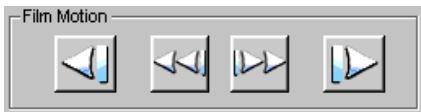
Film Motion
Zoom In, Zoom Out

Move
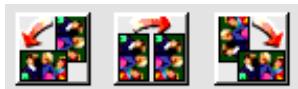
Image Rotation
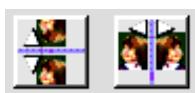
Flip Horizontal, Flip Vertical
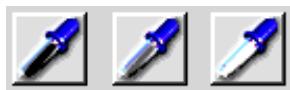
Black Pointer, Gray Pointer, and White Pointer
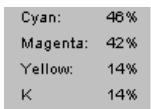
or
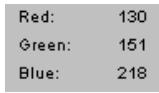
CMYK or RGB Values

Auto Balance

Default Balance
Auto-Focus Slide
Undo
Image Window
Prescan Frame
Prescan Strip
Scan
Scan to File
Calibration
About
Help
Exit
Status Bar
ON THE SETTINGS TAB
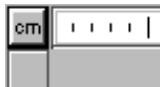
Units and Rulers
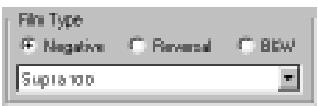
Film Type
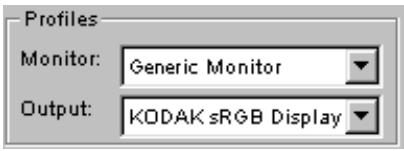
Profiles

Color Depth

Sharpening
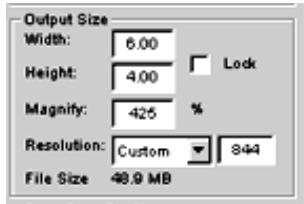
Output Size and Input Values
Manage Scan Profile
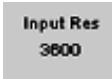
Scan Resolution
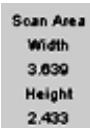
Scan Area
ON THE COLOR BALANCE TAB

Reset
ON THE LEVELS & CURVES TAB
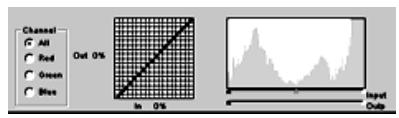
Channel, Histogram, and Curves
Reset
Technical Assistance
Refer to the following sources for assistance if you have questions as you work with the scanner.
- If you encounter difficulties with hardware, with scanned images or with product performance, refer to Troubleshooting in this manual.
- If a message appears on the computer screen that you do not understand, refer to Messages in this manual.
- The software displays brief tool tips when you move the pointer over each scanner control. These descriptions provide short hints regarding the functioning of these buttons and controls.
- The status bar at the bottom of the software window provides additional information regarding the functions of the software controls.
- If you need other assistance from this manual, refer to the Contents and the Index.
- If you are unable to find answers from this manual, contact your dealer with any questions you may have. The name of your nearest dealer in the United States is available by calling 1-800-CD-KODAK (1-800-235-6325), and in Canada by calling 1-800-465-6325.
- If you are a customer in the United States and you are unable to find answers to your questions using this manual or from you dealer, call Kodak at 1-800-CD-KODAK (1-800-235-6325).
- If you are a customer in Canada and you are unable to find answers to your questions using this manual or from your dealer, call Kodak at 1-800-465-6325.
- If you are a customer outside the United States or Canada and you are unable to find answers to your questions using this manual, contact your local Kodak representative for technical assistance.
We encourage you to visit http://www.kodak.com for additional product information.
Symbols
12 Bit 33,65
A/D conversion 102
180^ 35,52
35 mm filmstrip. See Filmstrip: 35 mm
35 mm slide. See Slide: loading
8 Bit 33,65
90^ clockwise 35, 52
90^ counterclockwise 35, 52
A
A/D performance
specifications 102
About button 60-61
ACadapter 9,15,47
cable 15
repacking 98
Accessories 7,9
Acquire, glossary entry 104
Acquire module, Macintosh 25, 101
Acrobat Reader 95
Adaptec 2906, 2930, and
2940 13
Adapter. See AC adapter
Adapter card. See Host adapter card
Adobe Acrobat Reader 61, 95
AdobePhotoshop 25,29,30
driver, glossary entry 104
File Import menu 30
Macintosh version 12
PC version 13
troubleshooting 87
Advanced SCSI Programming
Interface 13,87
After. See Before/After
All (Channel), Levels &
Curves tab 44, 76
Apple Power Macintosh. See Macintosh
ASPI. See Advanced SCSI
Programming Interface
Attachments 7,8
Auto balance 38-41, 54, 64
use with color pointers 53-54
Auto-Focus Slide but-
ton 55-56
B
B&W 32,40,53,64
specifications 99
with SBA 54
Base file name 90
Batch scans 103
Before/After
Color Balance tab 41-44
Levels & Curves tab 43
Black and white 26,32
data channels 65
Black pointer 40, 41, 52-54
value too low/high 94
with Default Balance 55
with SBA 54
Black slider 77
Blue (channel), Levels &
Curves tab 44, 76
Brightness 41, 42, 74
Buttons (hardware), scan-
ner 27-28
C
Cables, repacking 98
Calibration
Light Source button 60
specifications 101
Canadian Department of
Communications 10
Cathode fluorescent
lamp 100
CCD sensor 100
CD-ROM
repacking 98
scanner software 25
Channel 65,76-77
Levels & Curves tab 44
Charge coupled device sen
sor 100
Class B digital device 9
Cleaning 7
filmstrip. See Filmstrip:
cleaning
Click balance 38-41
cm (centimeters) 37,63,67
CMYK
color values 40
data channels 65
values 54,65
Color Balance
40-41, 41
specifications 102
Color Balance tab 41-44, 73-74
Color Depth 33,65,78
specifications 102
Color Management
specifications 102
Color Separation
specifications 100
Color/Gray Levels
specifications 102
ColorSync Profiles 65
Computer Interface
specifications 100
Connecting, scanner 14-24
Contrast 41, 42, 74
slider 88
troubleshooting 89
Cover, back of scanner 16, 24
Crop 35,63-64
affect on output 67
crop box 36-38
moving 35,63
removing 35,63
resizing 35,63
Curves 76-77
Custom, resolution 67
Cyan/Red 42,74
D
Default Balance 38-41, 41,
54, 55
Deselecting, thumbnails. See
Thumbs: deselecting
Device Manager (USB) 23
Dimensions, specifica
tions 100
Directory name 92
Disk space. See Hard disk space
Display card
Macintosh 12
PC 13
Disposal Statement 10
Download 96-97
ICC profile 65
DRAM. See Dynamic ran
dom access memory
Driver
glossary entry 104
updating 96-97
Driver window, glossary
entry 104
Dynamic random access
memory 12, 13
Dynamic Range
specifications 102
E
Eject button (hardware) 27,
45, 47, 100
not for slides 28
Eject Reverse button 47
Eject Reverse button (software) 27
Electromagnetic Emis
sions 9-10
Emulsion, film loading 27
EN55022 10
Energy efficiency 11
Energy Star® Statement 11
European Standard
EN55022 10
Exit button 32, 34, 45, 58,
61,78
EZ-SCSI 5.0 13
F
File formats 59
specifications 103
File menu. See Adobe
Photoshop: File Import
menu
File size 66-71
specifications 103
Filename 59, 90
scan profile 90
Film motion 33,45,51
Film, specifications 99
ejecting 99
loading 99
Film terms 64,96
specifications 101
troubleshooting 95
Film Type 32,40,53,64,78
specifications 101
with SBA 54
Filmstrip
1 or 2-frame film not
accepted 26
35mm 26
cleaning 26
identification labels 26
leader 26
length 26
loading 26,27
specifications 99
spliced not accepted 26
Fire hazard, preventing 7
Firmware 60-61
glossary entry 104
update 97
upgrade 60
version number 60
Flip buttons 35, 52
Focus slide. See Auto-Focus Slide button specifications 101 troubleshooting 88
Forward button
hardware 28, 34, 48, 100
software 28, 33, 51
ForwardEjectbutton 45,51
ForwardEjectbutton (software)33
Frame alignment 33 number 27
Frame numbers 50, 58
G
Gamma monitor 89 setting 25
Generic Monitor. See Monitor: generic
Glossary 104-105
Gloves 26
Gray pointer 40, 41, 52-54 with Default Balance 55 with SBA 54
Green (Channel), Levels & Curves tab 44, 76 Green LED. See LED
Grounding 8
H
Hard disk space Macintosh 12 PC 13
Hardware Macintosh requirements 12 PC requirements 12 troubleshooting 86
Hazards 8
Height 36-38, 66-71
Help button 61 specifications 103
High (Sharpening) 41,66
Histogram 44,76,76-77sliders 88
Host adapter card 13, 16, 87, 100
SCSI ID 22
Humidity Range, specifications 101
1
ICC. See International Color Consortium
ICC profile 94
icm, filename extension 65
Icon Index 106-110
ID number. See SCSI: identification number (ID)
Identification labels, filmstrip. See Filmstrip: identification labels
Image area 34,50,62-63
Image controls, specifications 102
Image preview window glossary entry 104
Image Rotation button 52
Image, troubleshooting 87-96
Image Window button 38-41,56-57 with click balance 52
Imager, glossary entry 104
Import submenu. See Adobe Photoshop: File Import menu
In (inches) 37,63,67
Input Res 36-38
Input sliders 76
Input values 66-71
Installation program 87, 94, 95
Installing scanner software 25
International Color Consortium 33,64
J
JPEG 59
K
Kodak Environmental Services 10
KODAK sRGB Display 33, 65
Leader. See Filmstrip: leader LED 47 troubleshooting 47,86
Levels & Curves tab 41-44, 75-77
License Agreement 79-82
Light Source, specifications 100
Lightning protection 8
Loading
filmstrip. See Filmstrip: loading
slides. See Slide: loading
Lock 36-38, 66-71
Low (Sharpening) 41,66
M
Macintosh 12 OS8.5.1 12
Magenta/Green 42,74
Magnify 36-38,66-71
Manage Scan Profile 45, 71
Measurement units 37, 72
Medium (Sharpening) 41, 66
Messages 90-95
Microsoft Windows 25
2000 13,65
USB connection 23
98SE 13,65
USB connection 23
NT 4.0 13,65
Monitor
gamma 89
generic 32
Macintosh 12
PC 13
profiles 32,64-65
resolution 13
Macintosh 12
PC 13
Move button 39,52
Multiple selected images 77-79
N
Negative 26,32,40,53,64
specifications 99
with SBA 54
NT 4.0. See Microsoft Windows: NT 4.0
0
Off (Sharpening) 41,66
On/Off Switch 47
Operating buttons, specifications 100
Operating instructions 7
Operating system
filename requirements 90
scan profile names 90
OS 8.5.1. See Macintosh
Output
profiles 33,40,54,64-65
size 36-38, 66-71
height 38
width 38
滑行者 77
P
Packing materials 7,15
PC-compatible, require-
ments 12
PDF file 61
using 2
Performance,improving 12, 13
Photoshop. See Adobe
Photoshop
Photoshop driver, glossary
entry. See Adobe
Photoshop: driver, glossary entry
Plug-in, glossary entry 104
Power
cable 15
protection 8
connector 47
source 8,14-15
specifications 100
surges 8
switch 15
troubleshooting 86
Power on Light, glossary
entry 104
Precautions 7-11
Prescan 33-35
glossary entry 105
Prescan Frame button 33,
34, 49, 58, 62
Prescan Strip button 34, 49,
58,62
Preview, glossary entry 105
Preview image 53
Printers 13
Processor
Macintosh 12
PC 12
speed 12
Profiles 32-33,64-65,78
px (pixels) 37,63,67
R
Recycling information 10
Red (Channel), Levels &
Curves tab 44,76
Red border, thumbnail. See
Thumbs: red border
Reference
hardware 47-48
software 49-78
Reinstall software 87
Remove 87,94,95
Repacking Instructions 98
Repair 87,94,95
Requirements 12-13
Reset button 43, 44, 56
Color Balance tab 74-75
Levels & Curves tab 77
Resolution 36-38, 66-71
monitor 13
specifications 103
Reversal 26,32,40,53,64
specifications 99
with SBA 54
Reverse button 48, 51
hardware 27,34,47,100
software 27,33
ReverseEjectbutton 33,45
51
RFS 3600 TWAIN Data
Source 30
RGB
data channels 65
values 40,54,65
Rotate 35
Rulers 37,63,67
S
Safeguards 7-11
Safety
grounding 8
specifications 100
Saturation 41, 42, 74
SBA. See Scene Balance Algorithm
Scan
button 44, 48, 58-59
hardware 48
resolution 72
times 12
Scan Area 36-38,72-74
specifications 99
Scan profiles 45, 71
deleting 72,91
Scan to File button 45, 59-60
Scanner hardware, specifications 100-101
Scanner software. See also Software
specifications 101-106
Scanning multiple images 78-99
Scene Balance Algorithm 40, 41, 54, 64, 102
with Default Balance 55
Scroll Left button 50
Scroll Right button 50
Scroll thumbnails 35
SCSI
cable 17,20,21
length 18
purchasing 17, 18
chain 16, 18-21, 19, 20, 21
connection 13, 16-22, 48-49
connector (ports) 16
external devices 18-21
ID 48
ID dial 22
identification number (ID) 21
Macintosh 22
PC 22
no external devices 17-18
port (connector) 17, 18, 19, 21
software. See EZ-SCSI 5.0
termination 18, 19, 20, 21
termination switch 18, 19
troubleshooting 86, 87
turn-on procedure 29
SCSI II
connector
Macintosh 12
PC 13
specifications 100
SE. See Microsoft Windows: 98 SE
Select (TWAIN source) 30
Select Source dialog box 30
Selected images, glossary entry 105
Selecting
multiple images 77-78
thumbnails. See Thumbnails: selecting
Self-test 47
Service 8,9
obtaining 84-85
Settings,multiple images 78-99
Settings tab 32-33,62-73
Sharpening 41,66,78
Shipping scanner 7
Shock hazard, preventing 7
Slide
cleaning 28
film. See Reversal
focus. See Auto-Focus Slide button
loading 26, 28-29
specifications 99
Sliders
Brightness, Contrast, Saturation 42
color 42
Software 29-46
opening 29-31
requirements
Macintosh 12
PC 13
troubleshooting 87
tutorial 29-46
Software Drivers, specifications 101
Software License Agreement 79-82
Specifications 99-103
Spliced film 99
troubleshooting 86
sRGB 33,65
Start-up procedure 29
Status bar 61-62, 103
System Folder 65
T
Technical Assistance 111- 119
Temperature range 8 specifications 100
Termination 100. See also SCSI: termination
Terminator 48. See also SCSI: termination
Thumbs 49-50
deselecting 50
no image adjustments shown 40
prescan 34
red border 35, 50, 59, 77
selecting 50
TIF 59
Tone curve 44, 76
Tool tips 103
Total (images prescanned) 50
Troubleshooting 86-89
Tutorial 29-46
TWAIN Data Source 25,101
TWAIN driver, glossary entry 105
TWAIN, glossary entry 105
TWAIN specifications 13
TWAIN_32 30
TWAIN_32 Source 30
U
Undo 41, 43, 74
button 44,56,77
Units 63
button 73
Universal Serial Bus Controller (USB) 23
Update the KODAK Driver 96
Upgrade 60-61, 103
USB
cable 24
connection 23-26,48-49
specifications 100
connector Macintosh 12
connector PC 13
RootHub 23
User's Manual, unable to display 95
V
VCCI Statement 10-12
Version number 60-61. See also Firmware version number
Viewer window 34,51
W
Warm Up, specifications 101
Warning equipment 7
water and moisture 8
Warranty 8, 83-85
registration card 12,98
voiding 15
Weight, specifications 100
White pointer 40, 41, 52-54
value too low/high 94
with Default Balance 55
with SBA 54
White slider 76
Width 36-38, 66-71
Windows 2000. See Microsoft Windows: 2000
Windows 98 NT. See Microsoft Windows: NT 4.0
Windows 98 SE. See Microsoft Windows: 98 SE
World Wide Web 2
www.kodak.com 60,64,96
Y
Yellow/Blue 42,74
Z
Zoom buttons 39, 51-52
Zoom percentage 52
Eastman Kodak Company ("Kodak") reserves the right to change this information without notice. The information contained herein is based on the experience and knowledge relating to the subject matter gained by Kodak prior to publication, but Kodak makes no warranty, express or implied, with respect to this information. Kodak shall not be liable for any loss or damage, including consequential or special damages, resulting from the use of this information, even if loss or damage is caused by Kodak's negligence or other fault.
This publication contains proprietary information of Kodak or its licensors and is their exclusive property. No use may be made of it except according to a written agreement with Kodak. No patent or other license is granted by this information.
The scanner software is based in part on the work of the Independent JPEG group.

EASTMAN KODAK COMPANY ROCHESTER, NY 14650
KODAK PROFESSIONAL RFS 3600 Film Scanner
Kodak is a trademark.
New 9-00